














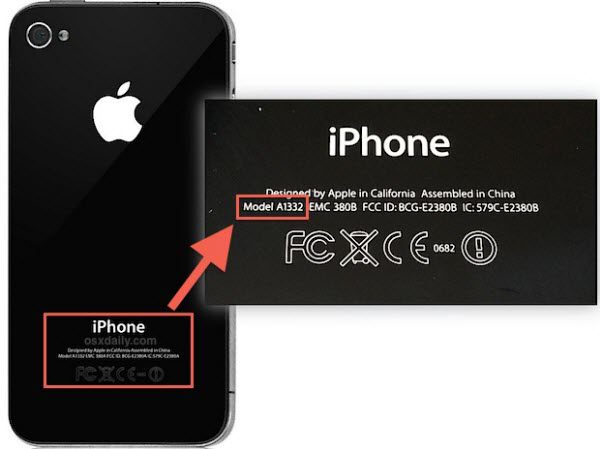
All mobile devices have a unique identity that is made up of an IMEI number, serial number and model number. The IMEI (or MEID) and serial number are two forms of identification for your phone or tablet. Just like fingerprints for people, these two numbers are different for every phone and tablet. These identifiers help ensure that your device is not a counterfeit and can also help you find it if it is lost or stolen. Additionally, sometimes you may need the IMEI or serial number to redeem special promotions from Apple or a 3rd party service provider such as Fix Factory Canada.
Note: Available screens and settings may vary by software version and device model.
The difference between IMEI/MEID and serial number
A serial number and IMEI are similar, but have some differences. The serial number is a unique number assigned by the manufacturer (like Samsung) to help identify an individual device, like a phone, tablet, TV, and so on. For example, your phone’s serial number will be different from every other phone Apple has made. Serial numbers make it easier for the makers to organize and keep track of their products.
On the other hand, an IMEI or MEID is only used for phones or other communication devices. Depending on the carrier, your device will have either an IMEI or MEID. These two numbers are different from a serial number. They are used at an international or global level, not just by manufacturers. Both types of numbers can help network providers track down a device that has been stolen or lost.
Finally, a model number is a specific number that applies to a range of products (i.e., the iPhone X, iPhone 11, etc.). The number will vary depending on the year the product was released, its colour, the carrier, and some other factors. Every model that falls into that category (same colour, etc.) will have the same model number. For example, certain iPhone X models have a model number of A1865 , whereas some iPhone X’s have a model number of A1901 (Japan).
All different iPhone models, regardless of other network connectivity, support GSM/EDGE (850, 900, 1800, 1900 MHz) and UMTS/HSPA+/DC-HSDPA (850, 900, 1700/2100, 1900, 2100 MHz) as well as 802.11ac Wi-Fi with MIMO and Bluetooth 5.
Let’s get started with the ways to find your identifiers
1. Look in Settings
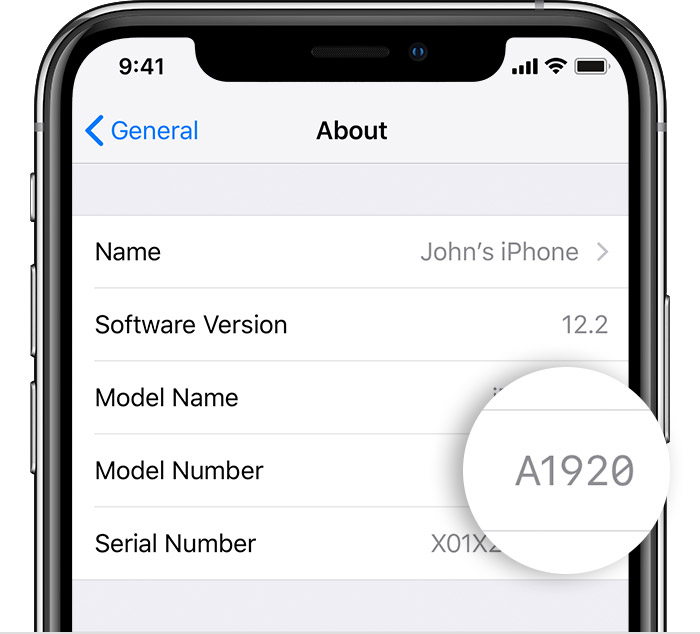
Go to Settings > General > About. To the right of Model, you’ll see the part number. To see the model number, tap the part number.
2. Look on Your Device
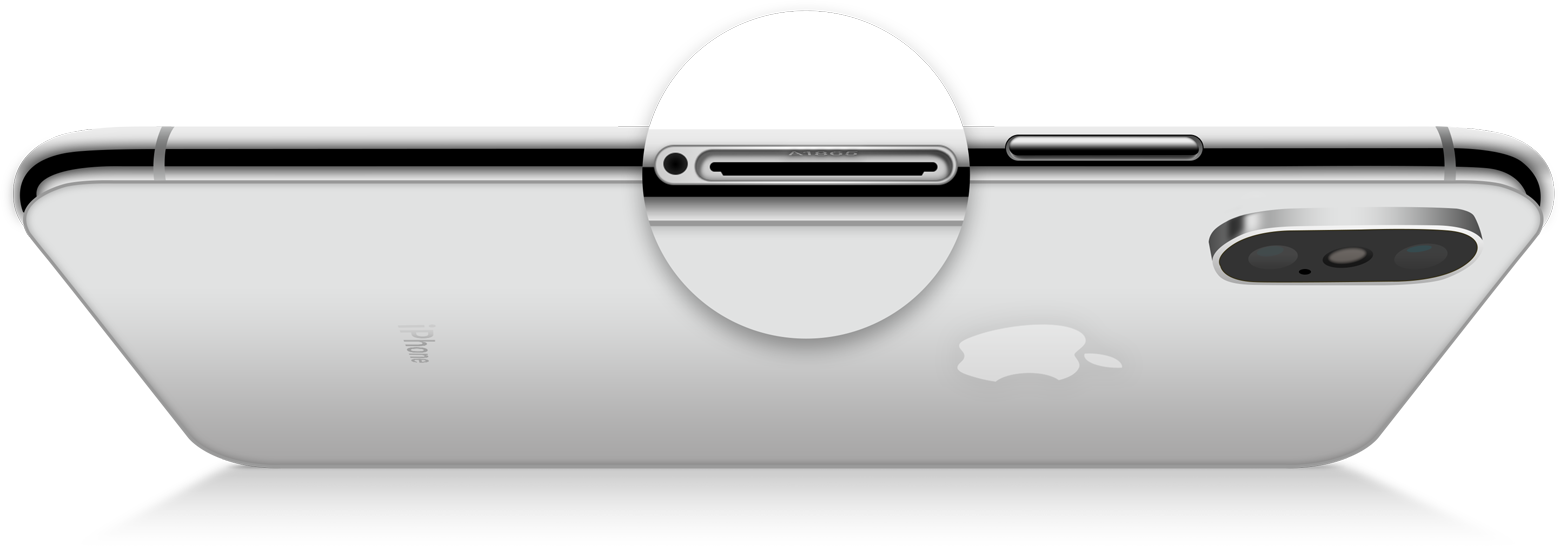
On an iPhone 8 or later, to find the model number, remove the SIM tray and look in the SIM tray slot. Make sure that you’re in a place with bright light overhead. The model number is on the upper side—the side with the display.
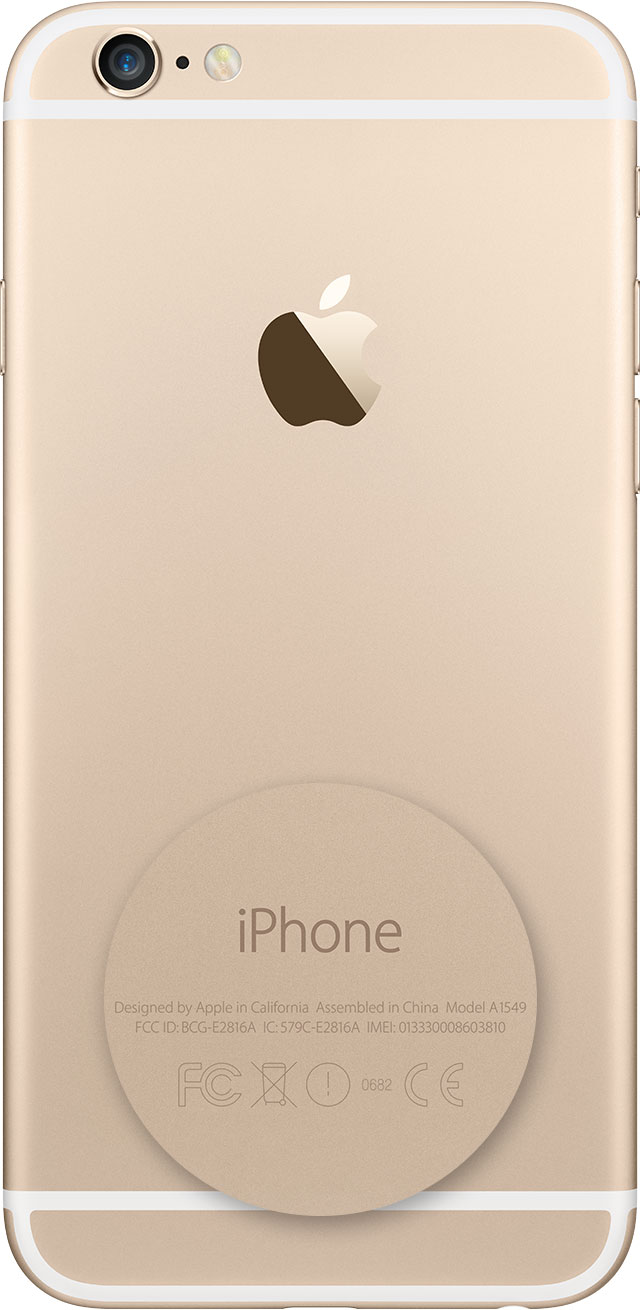
On an iPhone 7 or earlier, an iPad, or an iPod touch, find the model number on the back of your device.
Information about products not manufactured by Apple, or independent websites not controlled or tested by Apple, is provided without recommendation or endorsement. Apple assumes no responsibility with regard to the selection, performance, or use of third-party websites or products. Apple makes no representations regarding third-party website accuracy or reliability. Contact Us or the vendor for additional information.
Original Publish Date: March 30, 2021; Source: https://support.apple.com/en-ca/HT201296