To get started, get an instant online quote + service availability. Most times you can save money when you book your fix online - check the cart and checkout for coupons + service options!
Navigating life's intricate fabric, choices unfold paths to the extraordinary - demanding creativity, curiosity, and courage for a truly fulfilling journey! Get Fixed. Right. Onsite.™
IPHONE FIX. IPAD FIX. SAMSUNG FIX. GOOGLE FIX. DEVICE FIX.
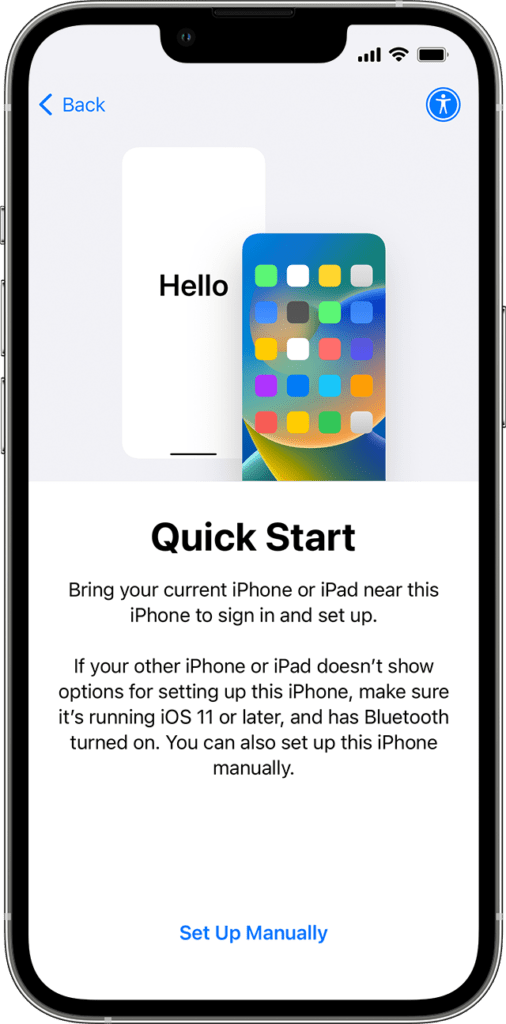
Set up your new iOS device automatically using an iPhone or iPad.
How to transfer your backup with Quick Start
Quick Start occupies both devices, so make sure that you choose a time when you won’t need to use your current device for several minutes.
Make sure that your current device is connected to Wi-Fi and Bluetooth is on.
Turn on your new device and place it near your current device. Follow the onscreen instructions to get started. If the prompt to set up your new device disappears from your current device, restart both devices.
Connect your device to Wi-Fi or your device’s cellular network.
If you download from iCloud, your apps and data download in the background so that you can start using your new device right away.
If you transfer directly from your previous device, you’ll need to wait for the transfer to complete on both devices before you can use them.
Keep your devices near each other and plugged in to power until the data migration process is complete. Transfer times can vary based on factors such as network conditions and the amount of data being transferred.
Important Notes
If your new device is enrolled in Apple School Manager or Apple Business Manager, you can’t use Quick Start to transfer data from your current device.
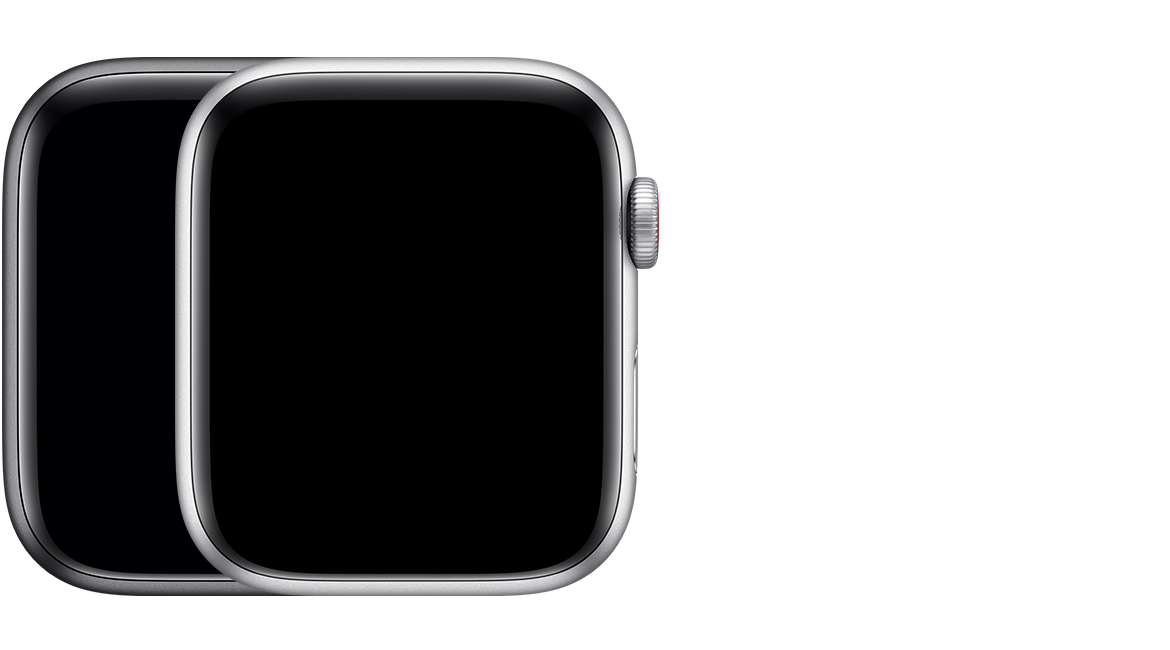
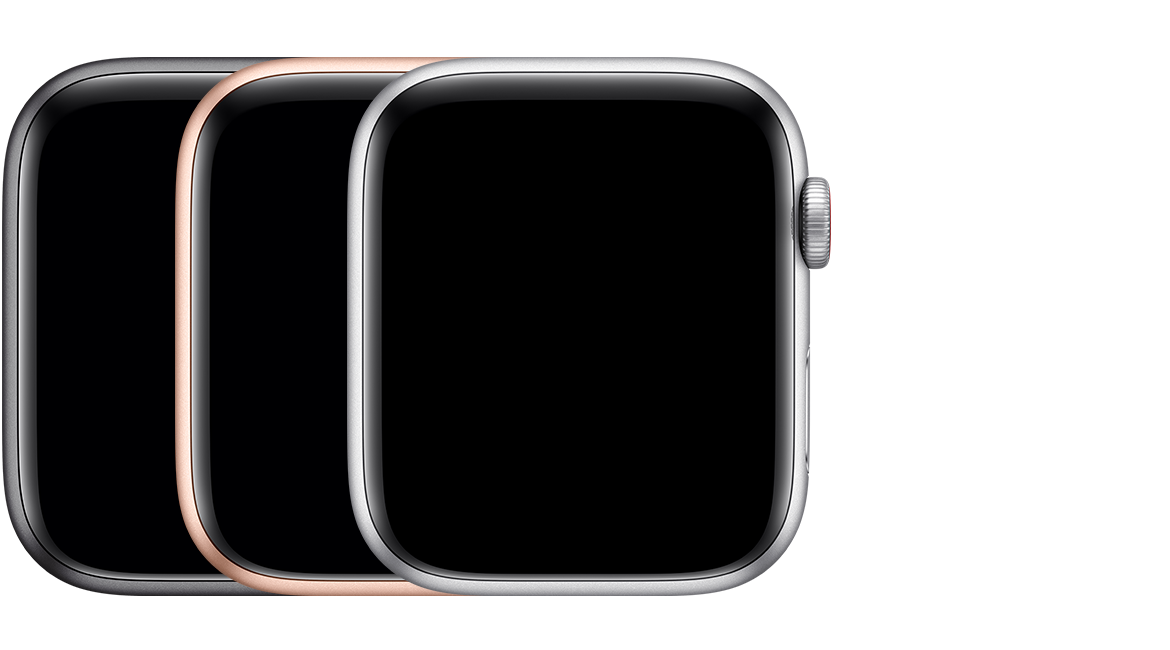
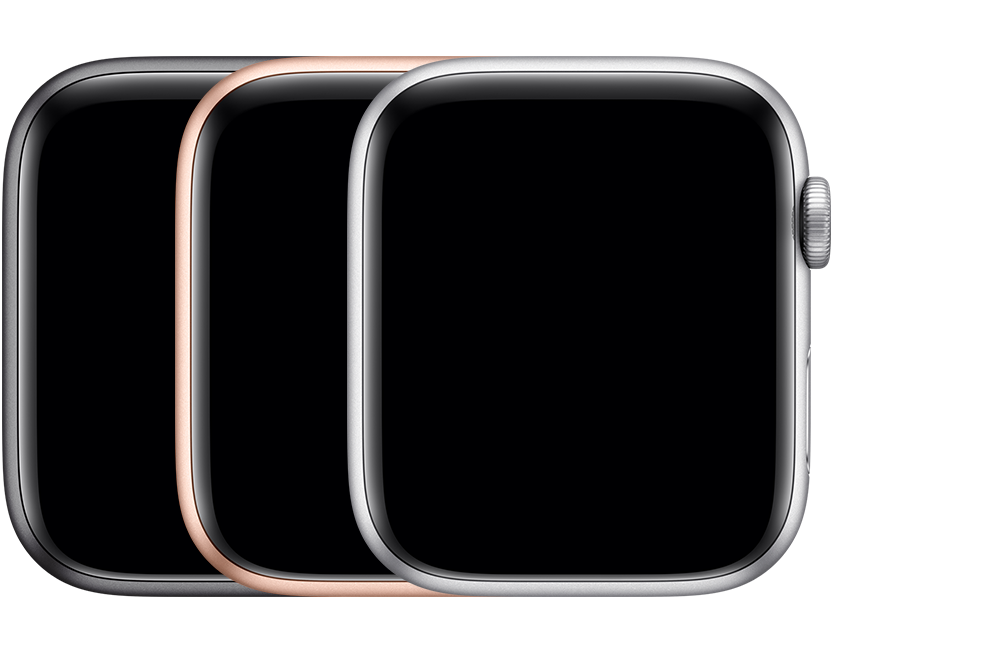
To learn which Apple Watch you have, use its model number:
Open the Apple Watch app on your iPhone.
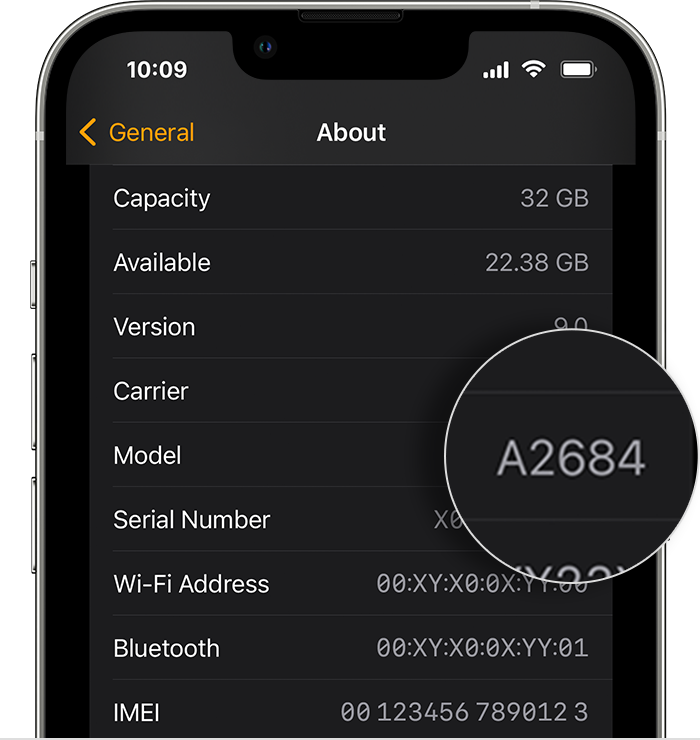
Tap the My Watch tab, then tap General > About.
Find the Model field. You should see the part number that begins with “M.”
Tap the Model field. You should see the field update to show a five-digit number that begins with “A.” This is your model number.
Compare your model number to the ones below.
Note: In Japan, if you have an Apple Watch Series 2 and the part number ends with “J/A,” you can use Apple Pay on your device to ride transit and make purchases in stores.
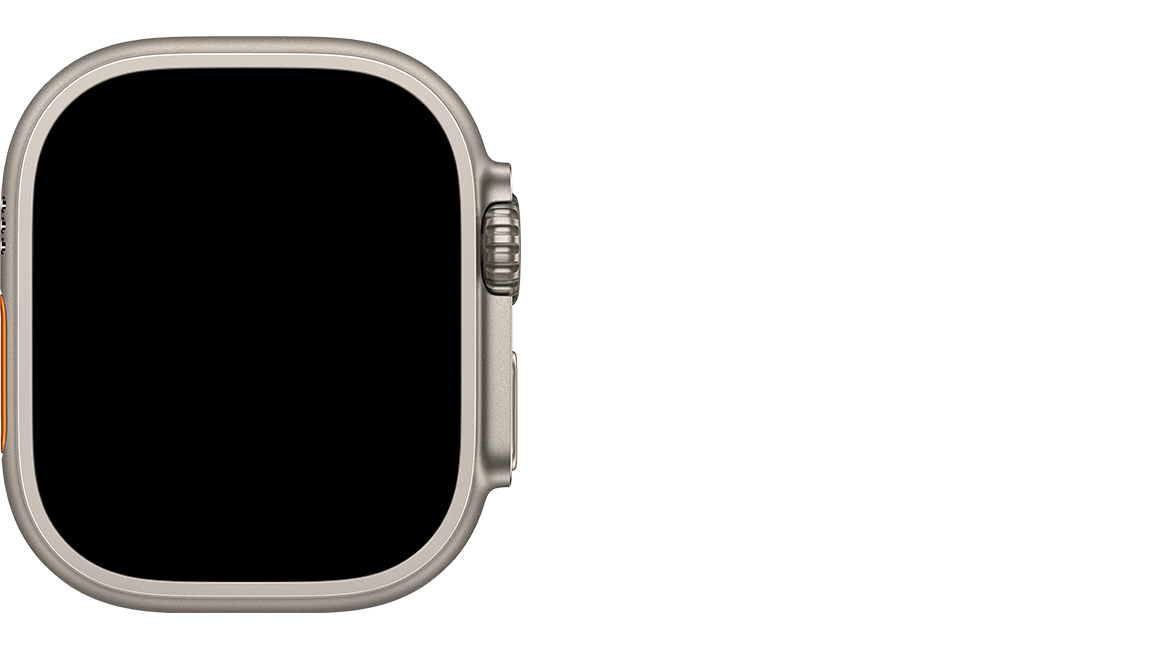
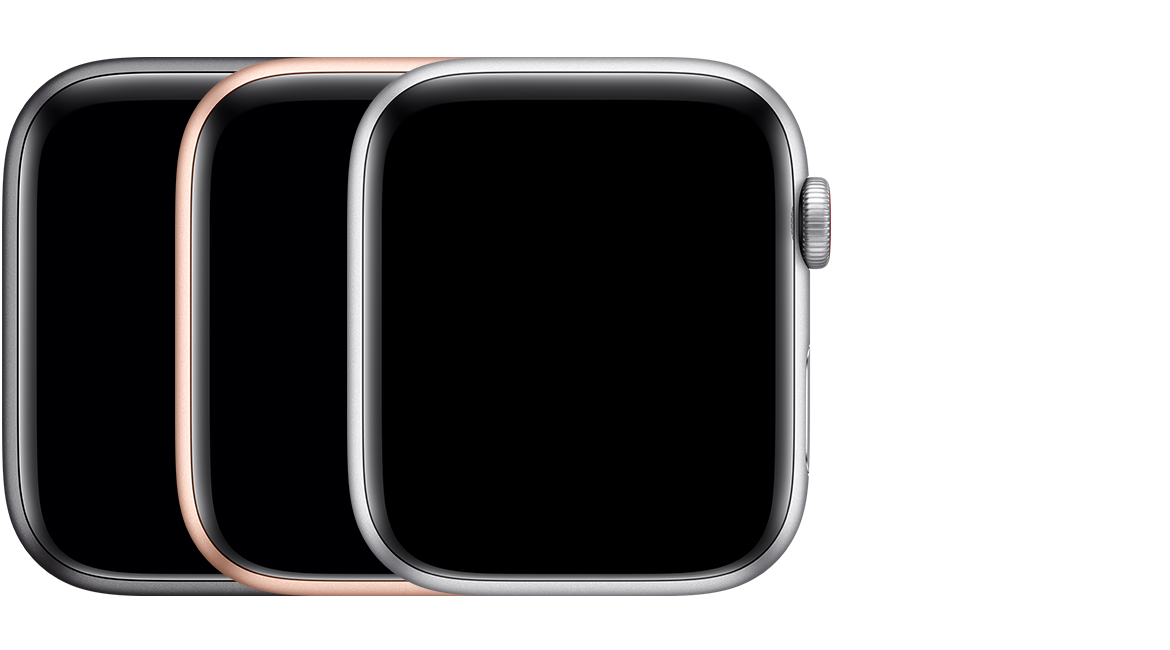
Apple Watch Ultra (GPS + Cellular)
49mm case (Model: A2622 North America; A2684 Europe, Asia Pacific; A2859 China mainland) Natural titanium with an orange ring on the Digital Crown Sapphire crystal, Retina display, and ceramic back
Apple Watch Series 8
To find your case size and more information, check the engraving on the back of your Apple Watch.
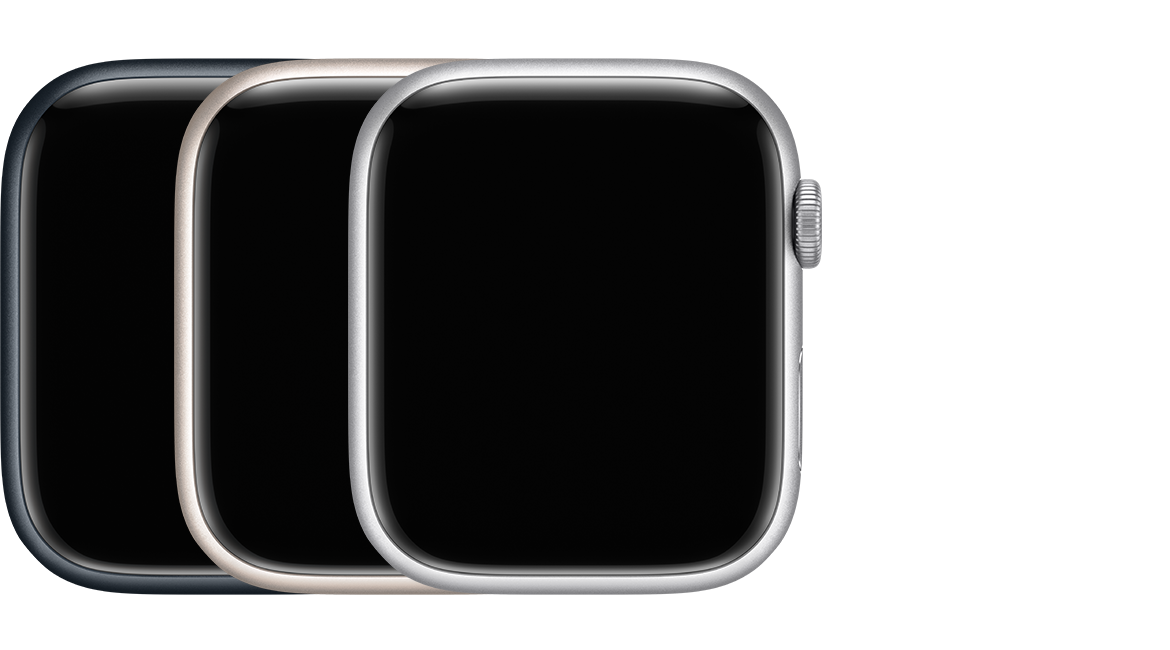
Apple Watch Series 8 (GPS)
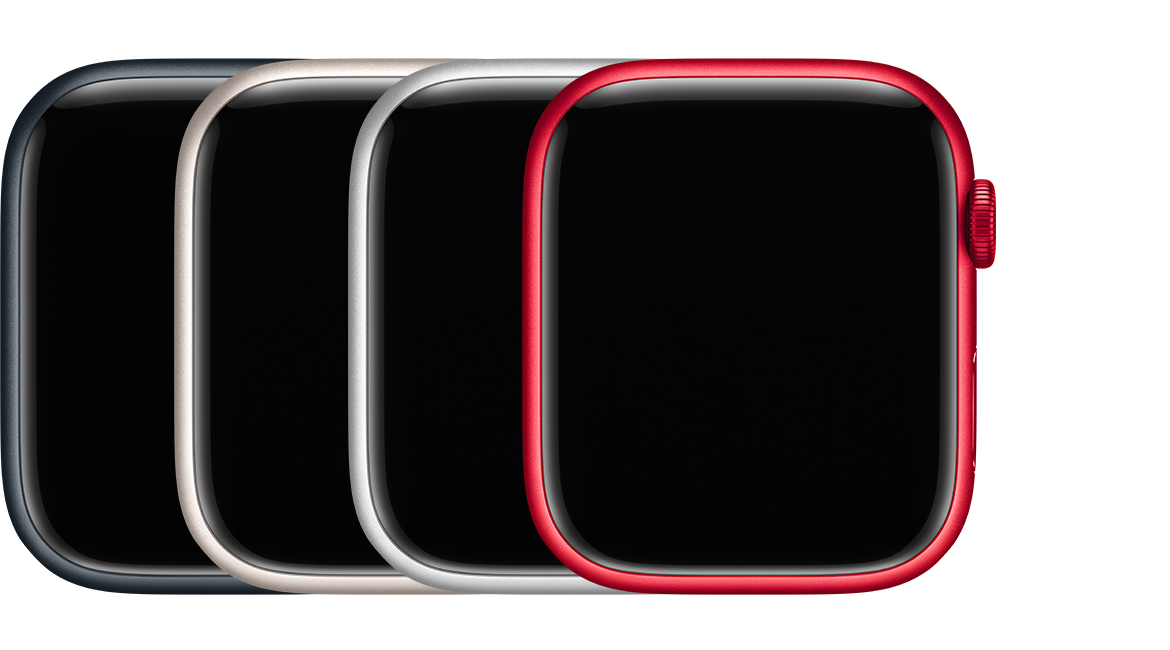
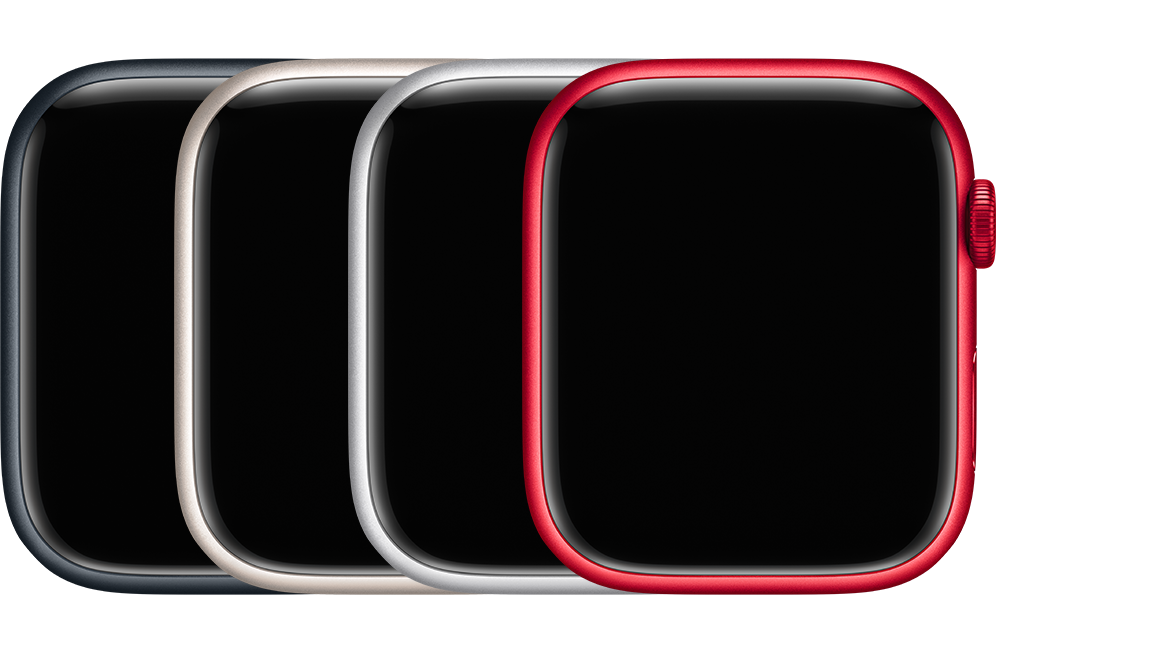
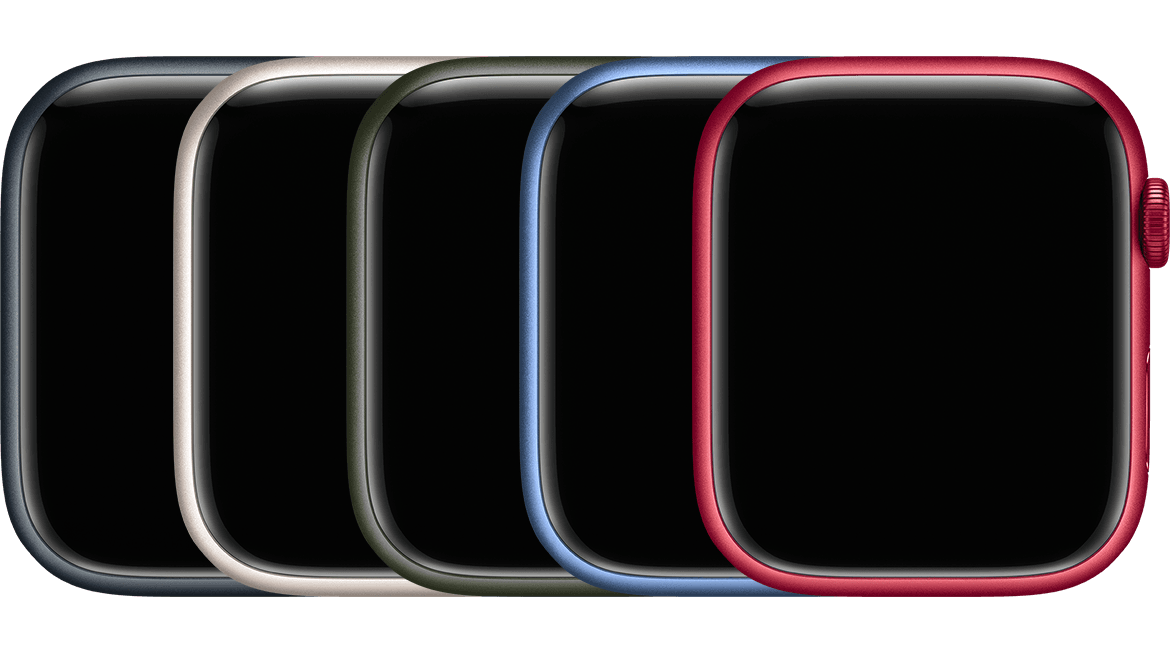
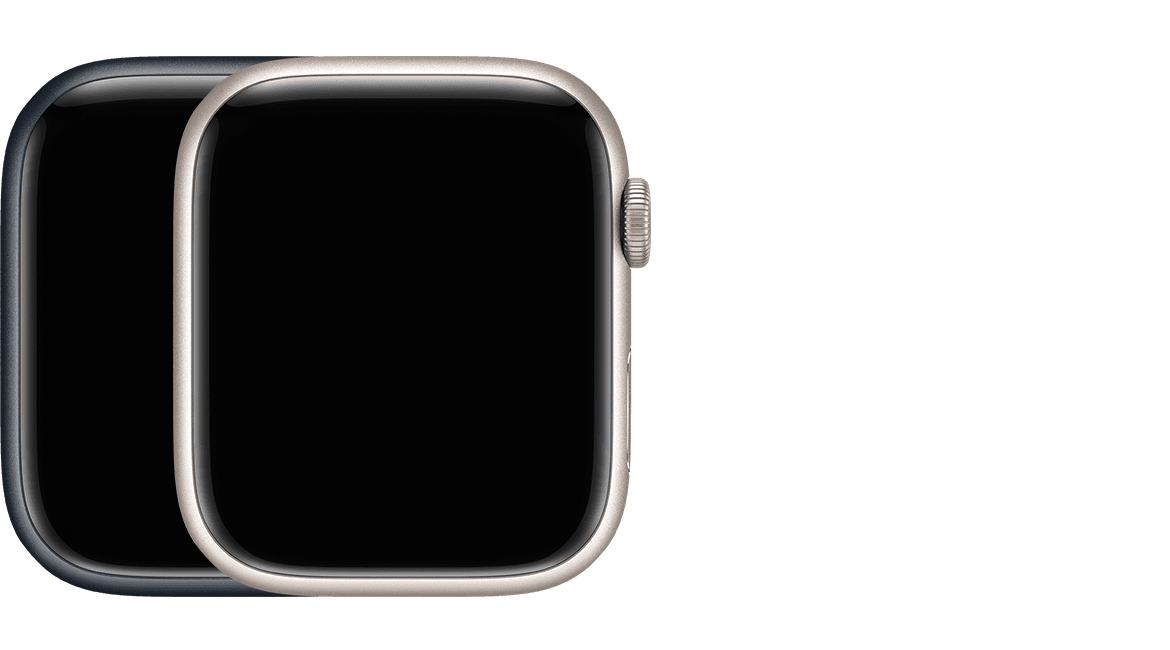
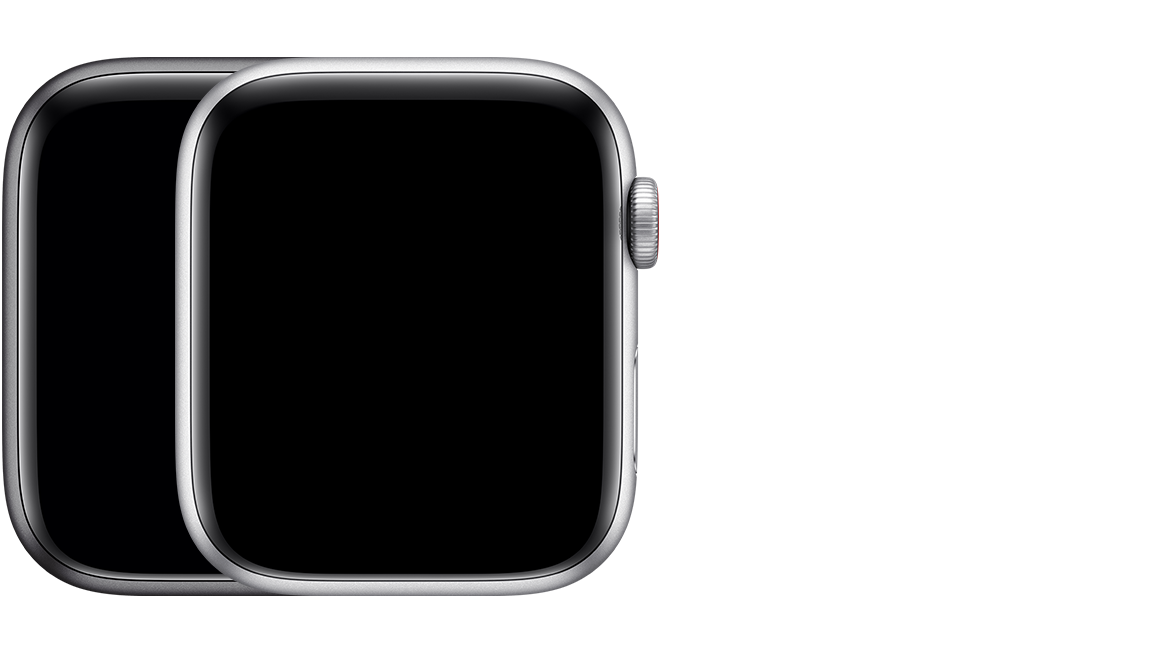
41mm case (Model: A2770) 45mm case (Model: A2771) Midnight, Starlight, Silver, or (PRODUCT) RED aluminum Ion-X glass, Retina display, and ceramic back
Apple Watch Series 8 (GPS + Cellular) Aluminum
41mm case (Model: A2772 North America; A2773 Europe, Asia Pacific; A2857 China mainland) 45mm case (Model: A2774 North America; A2775 Europe, Asia Pacific; A2858 China mainland) Midnight, Starlight, Silver, or (PRODUCT) RED aluminum with a red ring on the Digital Crown Ion-X glass, Retina display, and ceramic back
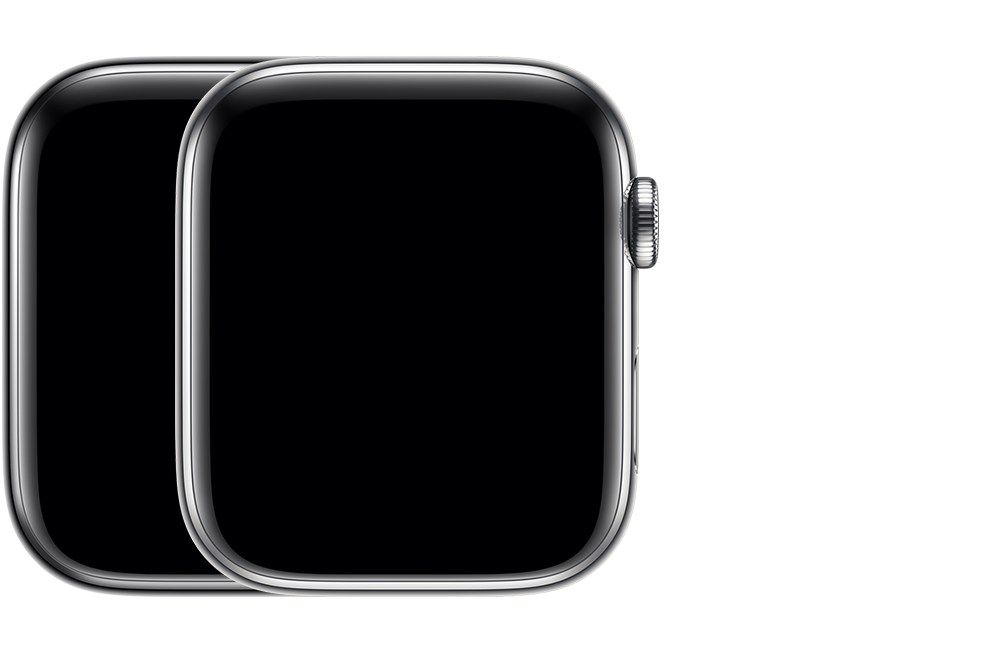
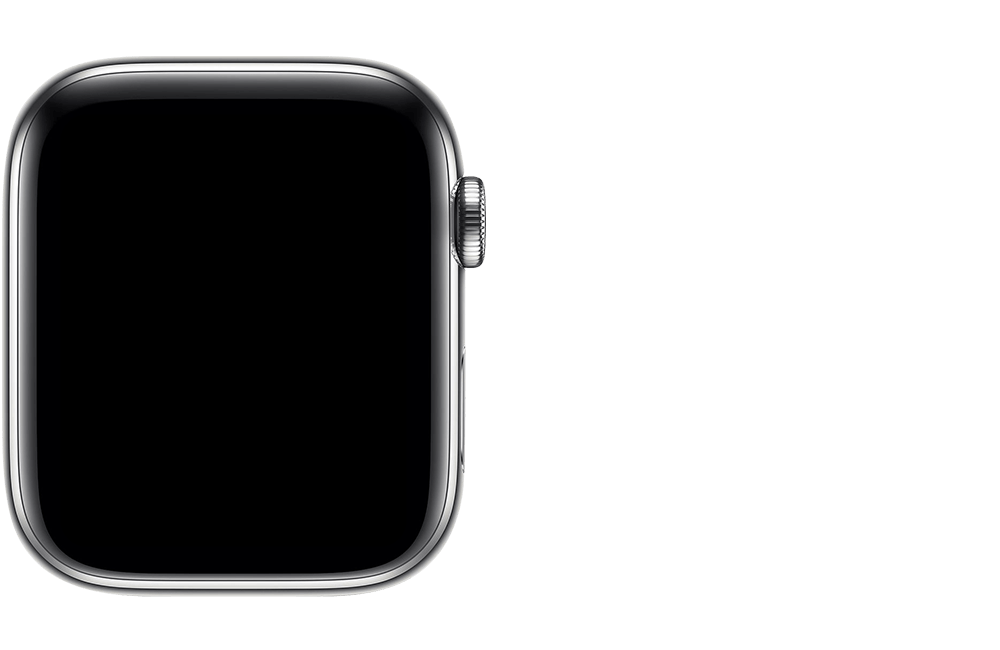
Apple Watch Series 8 (GPS + Cellular) Stainless Steel
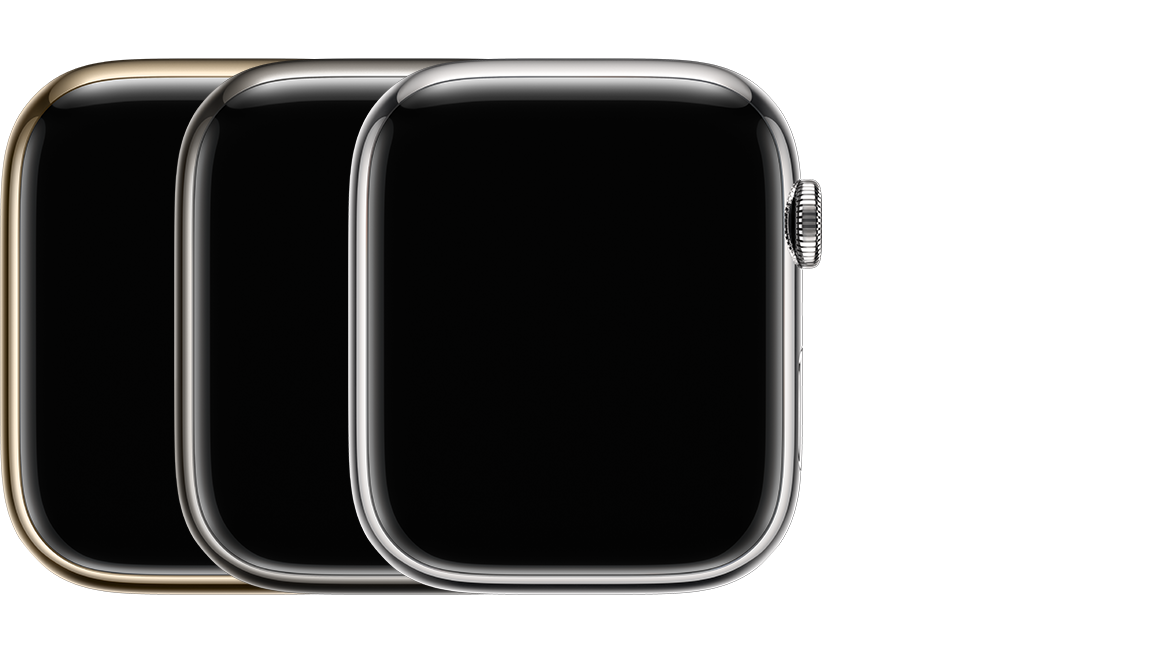
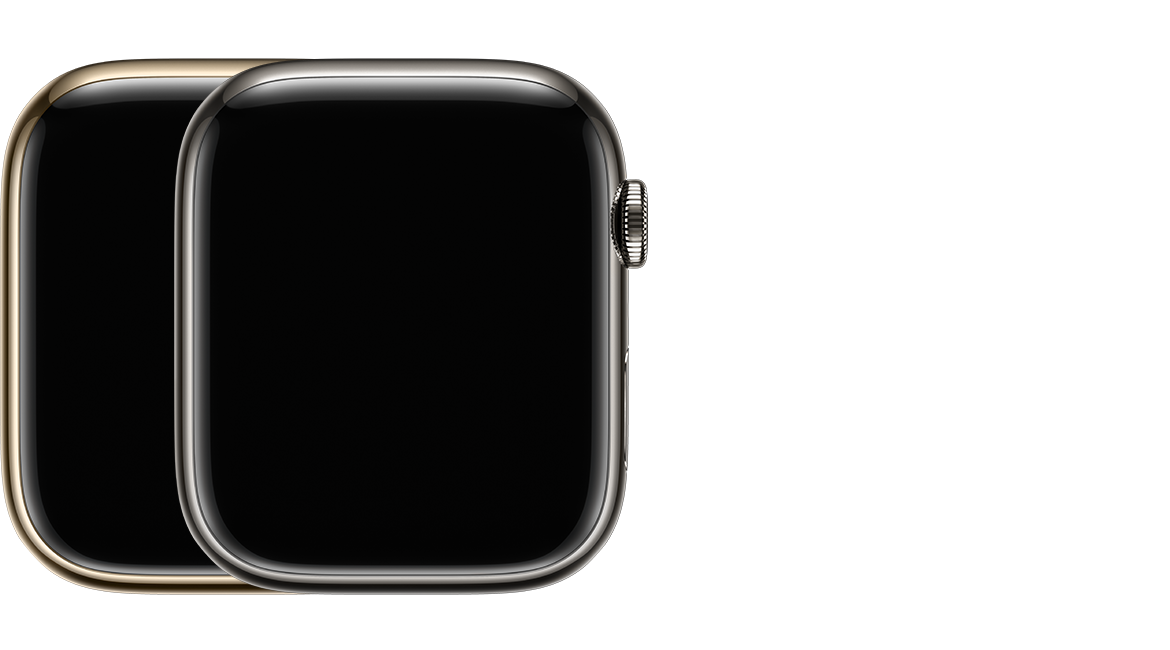
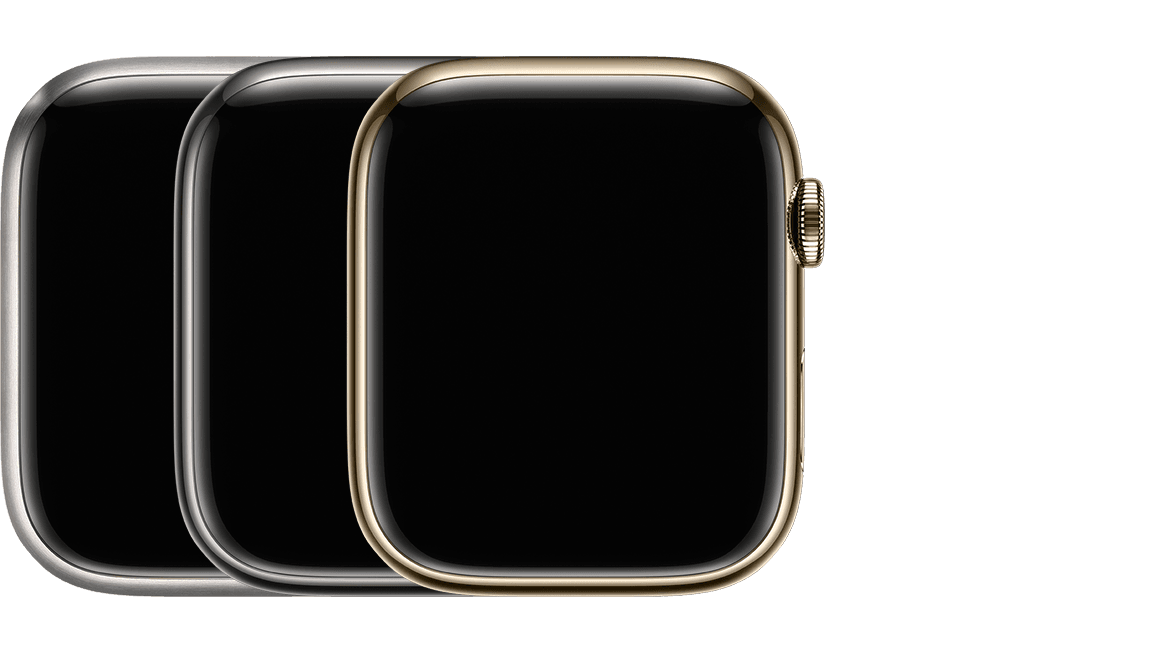
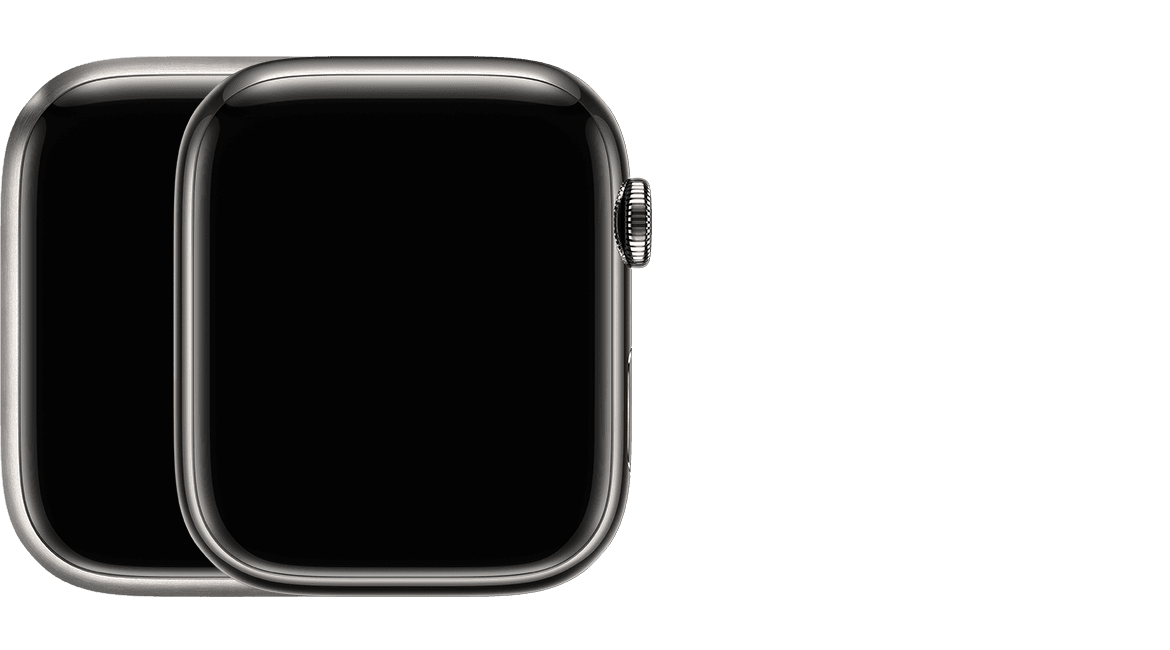
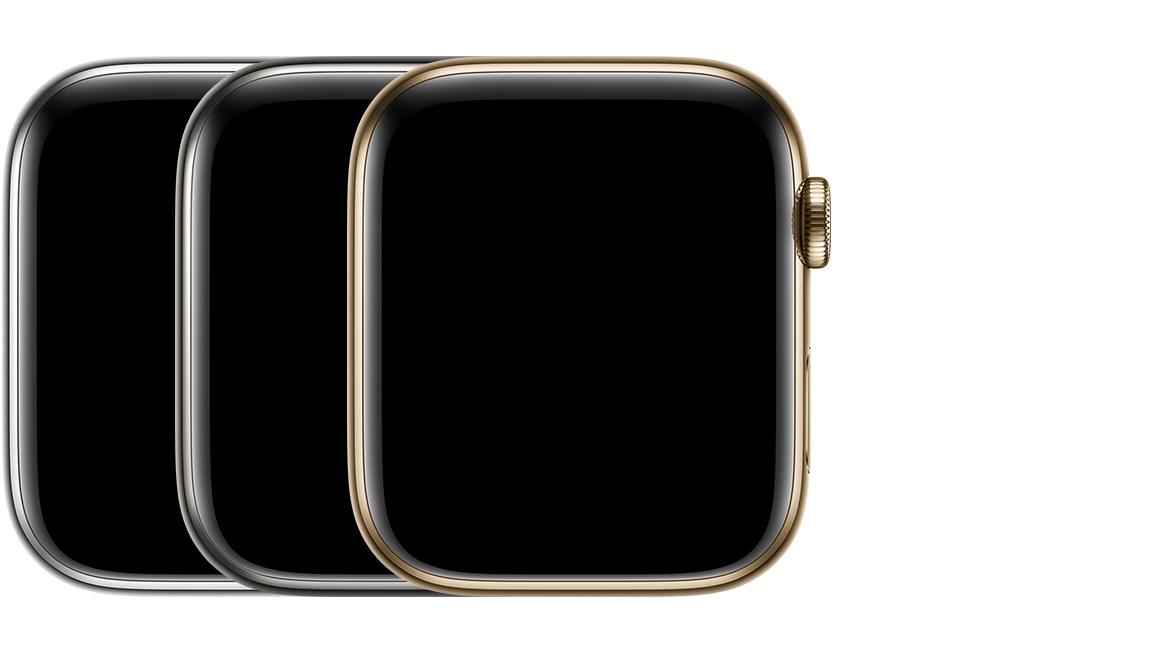
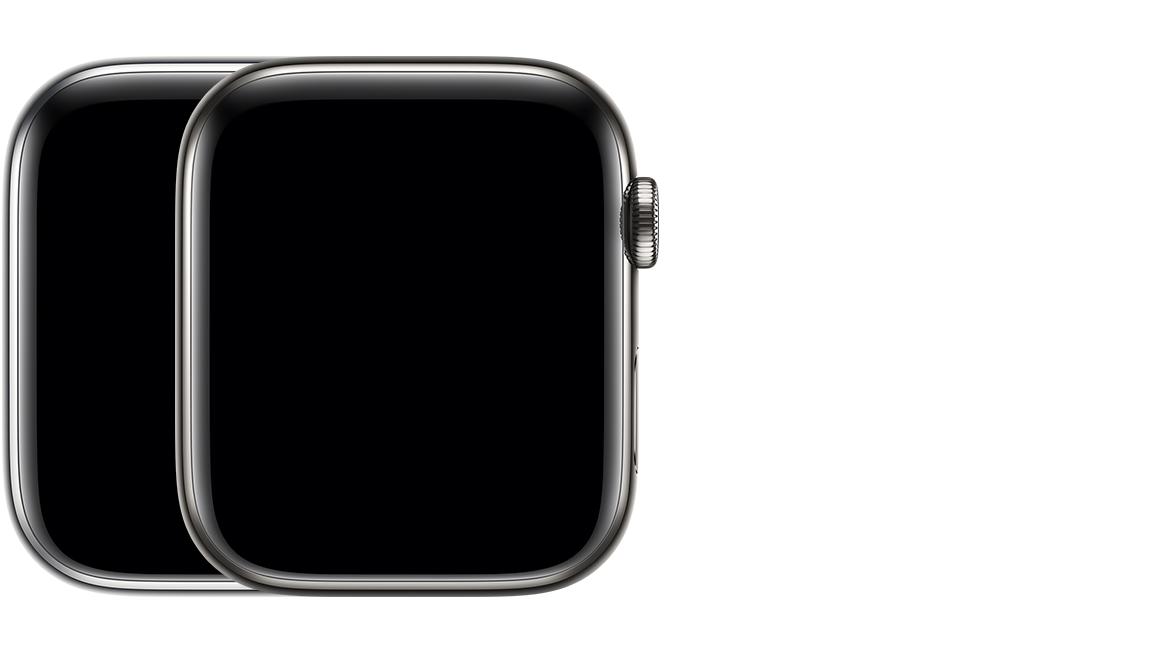
41mm case (Model: A2772 North America; A2773 Europe, Asia Pacific; A2857 China mainland) 45mm case (Model: A2774 North America; A2775 Europe, Asia Pacific; A2858 China mainland) Silver, Graphite, or Gold stainless steel with a red ring on the Digital Crown Sapphire crystal, Retina display, and ceramic back
Apple Watch Series 8 Hermès (GPS + Cellular)
41mm case (Model: A2772 North America; A2773 Europe, Asia Pacific; A2857 China mainland) 45mm case (Model: A2774 North America; A2775 Europe, Asia Pacific; A2858 China mainland) Silver or Space Black stainless steel with a red ring on the Digital Crown Sapphire crystal, Retina display, and ceramic back with Hermès logo
Apple Watch SE (2nd generation)
To find your case size and more information, check the engraving on the back of your Apple Watch.
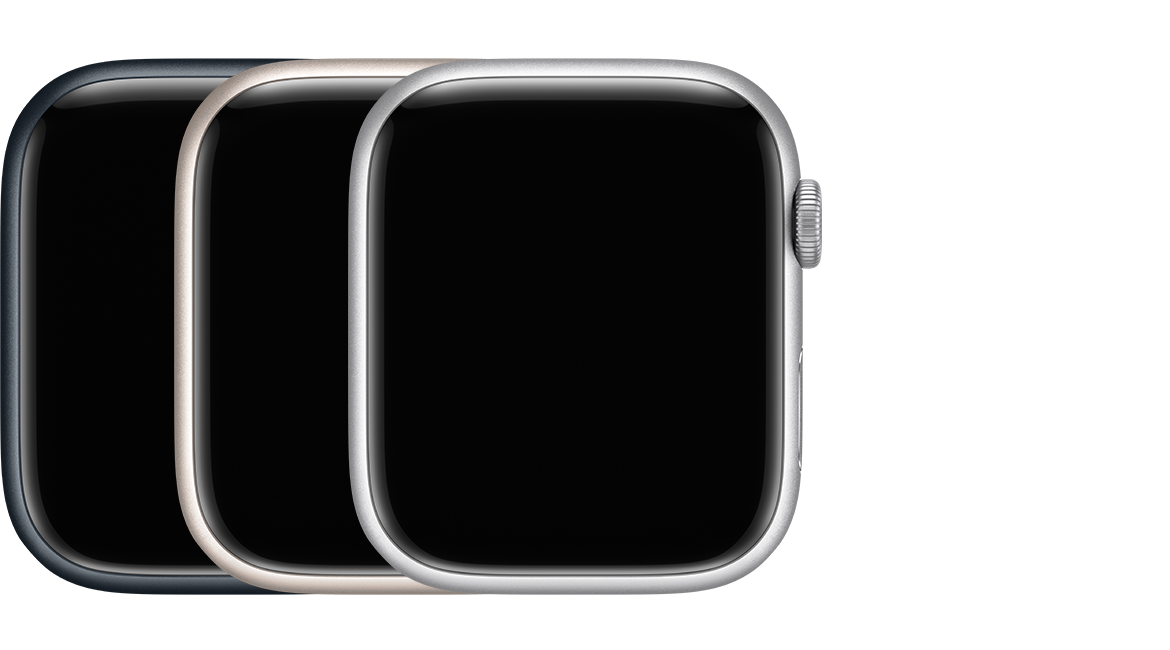
Apple Watch SE (2nd generation) (GPS)
40mm case (Model: A2722) 44mm case (Model: A2723) Midnight, Starlight, or Silver aluminum Ion-X glass, Retina display, and molded nylon composite back
Apple Watch SE (2nd generation) (GPS + Cellular)
40mm case (Model: A2726 North America; A2725 Europe, Asia Pacific; A2855 China mainland) 44mm case (Model: A2727 North America; A2724 Europe, Asia Pacific; A2856 China mainland) Midnight, Starlight, or Silver aluminum with a red ring on the Digital Crown Ion-X glass, Retina display, and molded nylon composite back
Apple Watch Series 7
To find your case size and more information, check the engraving on the back of your Apple Watch.
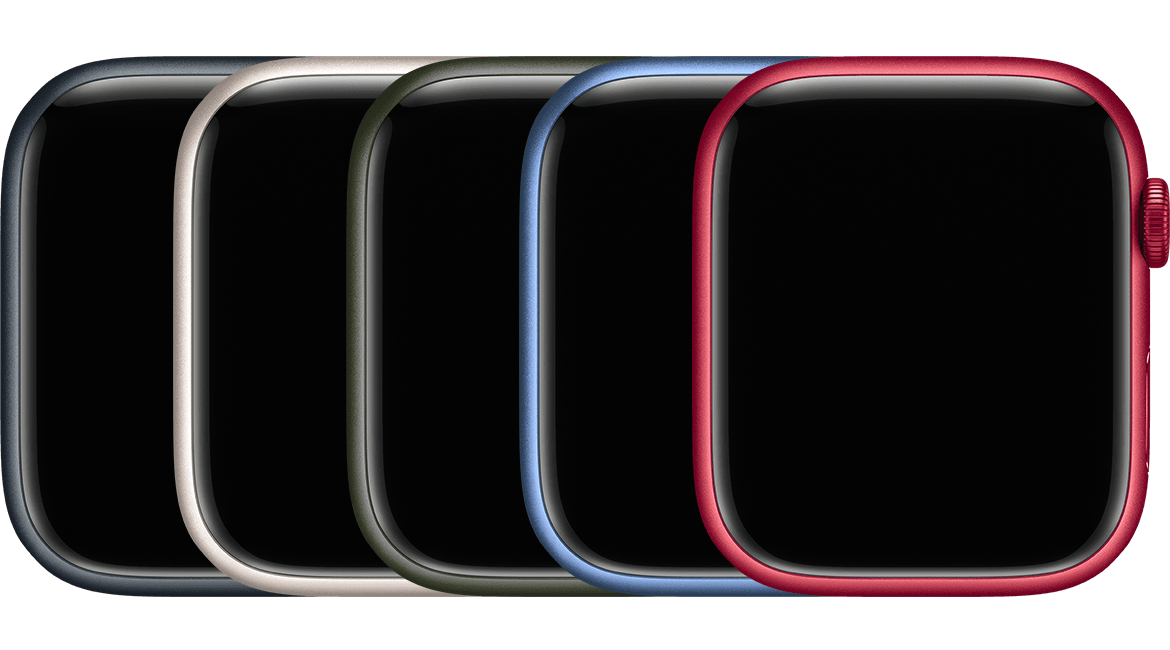
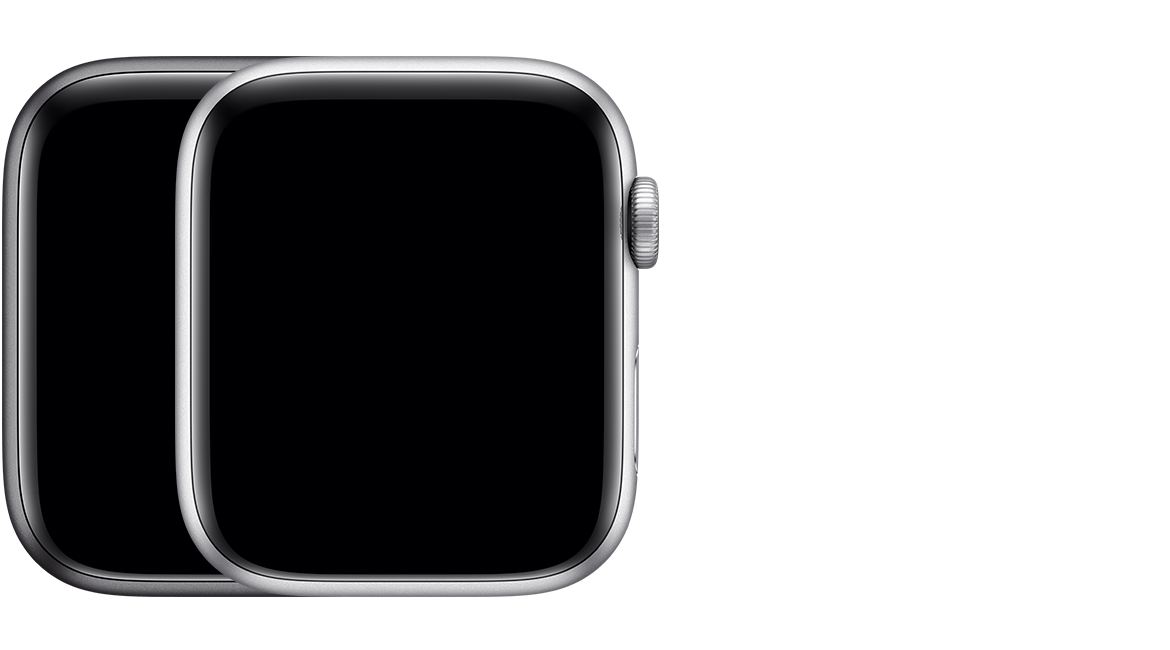
Apple Watch Series 7 (GPS)
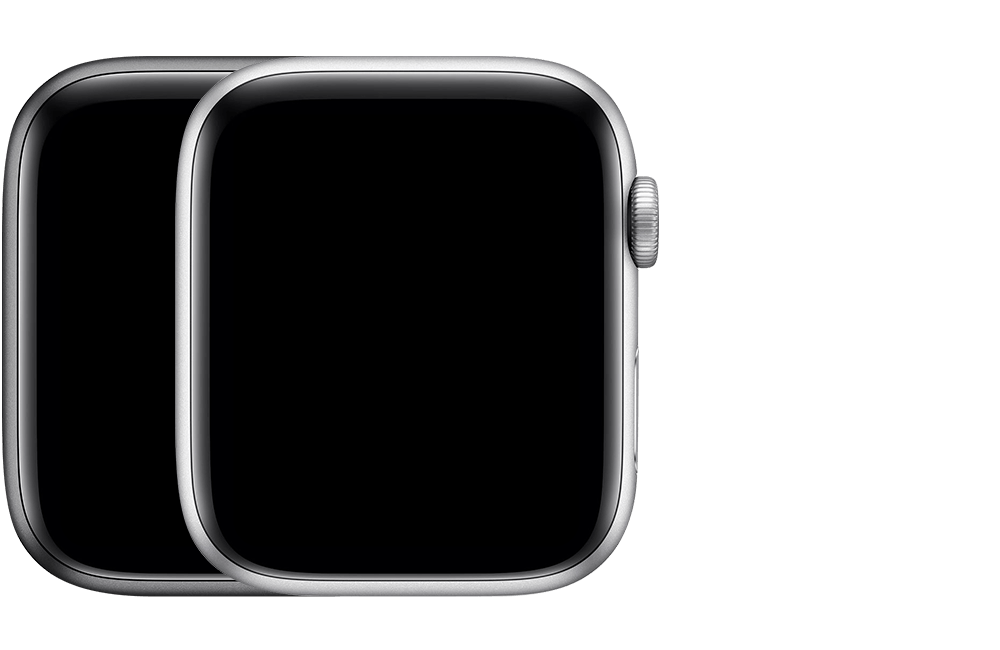
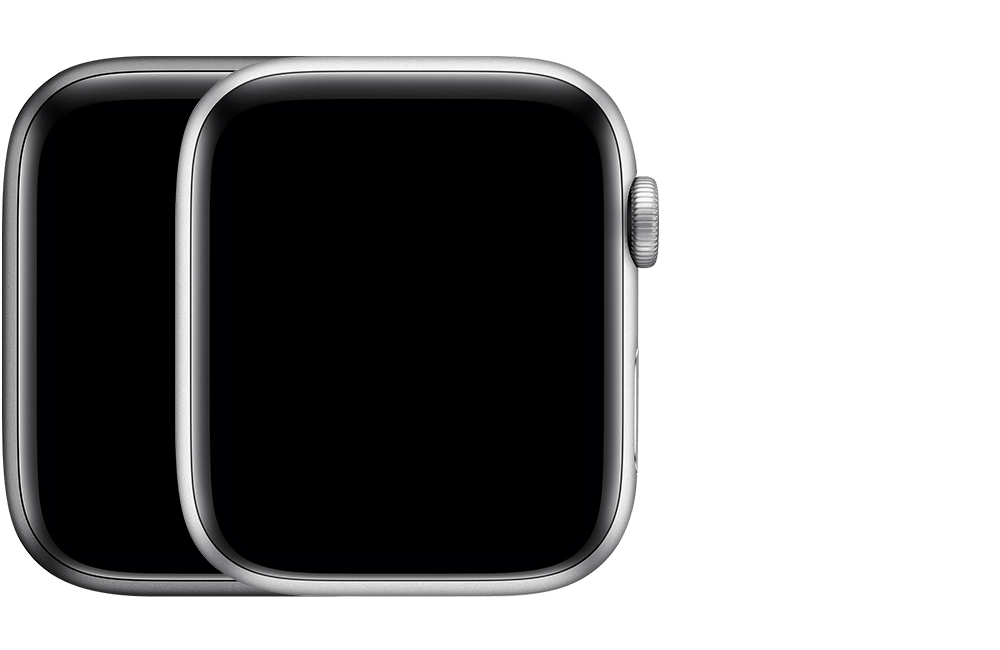
41mm case (Model: A2473) 45mm case (Model: A2474) Midnight, Starlight, Green, Blue, or (PRODUCT) RED aluminum Ion-X glass, Retina display, and ceramic back
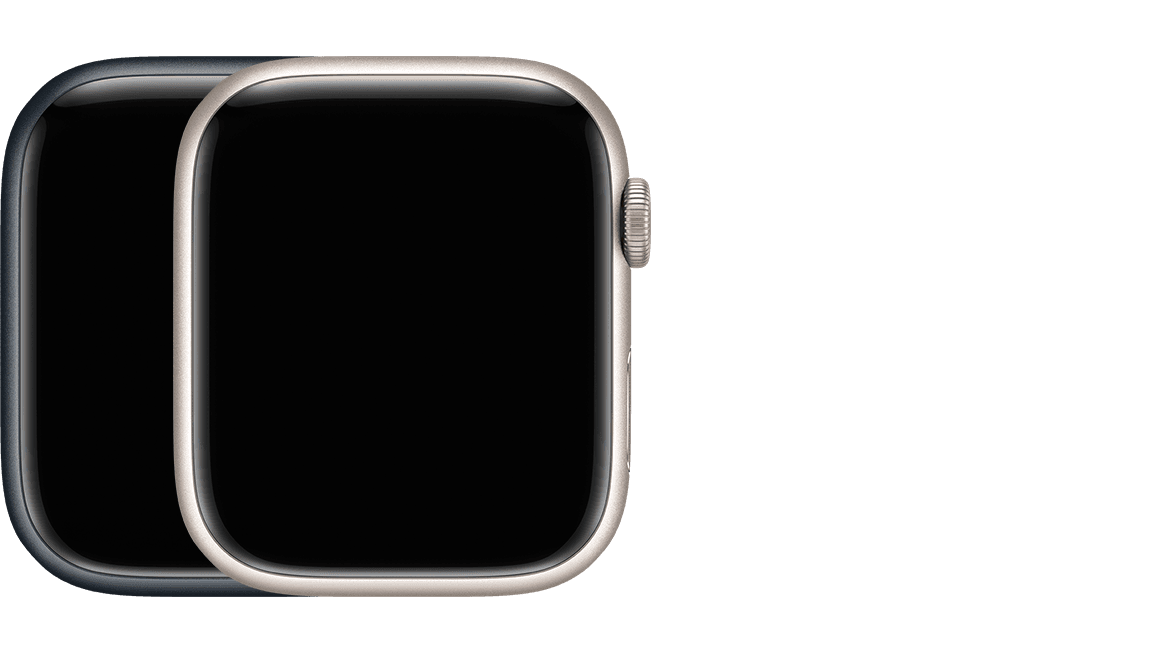
Apple Watch Nike (GPS)
41mm case (Model: A2473) 45mm case (Model: A2474) Midnight or Starlight aluminum Ion-X glass, Retina display, and ceramic back with Nike logo
Apple Watch Series 7 (GPS + Cellular) Aluminum
41mm case (Model: A2475 North America; A2476 Europe, Asia Pacific, and China mainland) 45mm case (Model: A2477 North America; A2478 Europe, Asia Pacific, and China mainland) Midnight, Starlight, Green, Blue, or (PRODUCT) RED aluminum with a red ring on the Digital Crown Ion-X glass, Retina display, and ceramic back
Apple Watch Nike (GPS + Cellular)
41mm case (Model: A2475 North America; A2476 Europe, Asia Pacific, and China mainland) 45mm case (Model: A2477 North America; A2478 Europe, Asia Pacific, and China mainland) Midnight or Starlight aluminum with a red ring on the Digital Crown Ion-X glass, Retina display, and ceramic back with Nike logo
Apple Watch Series 7 (GPS + Cellular) Stainless Steel
41mm case (Model: A2475 North America; A2476 Europe, Asia Pacific, and China mainland) 45mm case (Model: A2477 North America; A2478 Europe, Asia Pacific, and China mainland) Silver, Graphite, or Gold stainless steel with a red ring on the Digital Crown Sapphire crystal, Retina display, and ceramic back
Apple Watch Hermès (GPS + Cellular)
41mm case (Model: A2475 North America; A2476 Europe, Asia Pacific, and China mainland) 45mm case (Model: A2477 North America; A2478 Europe, Asia Pacific, and China mainland) Silver or Space Black stainless steel with a red ring on the Digital Crown Sapphire crystal, Retina display, and ceramic back with Hermès logo
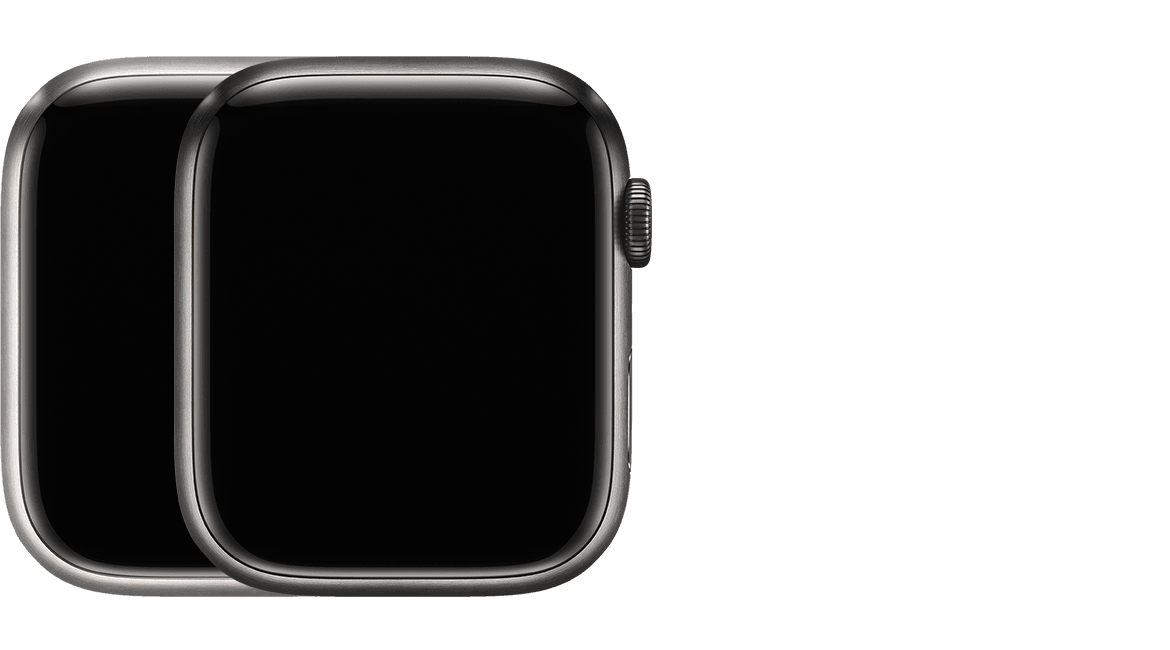
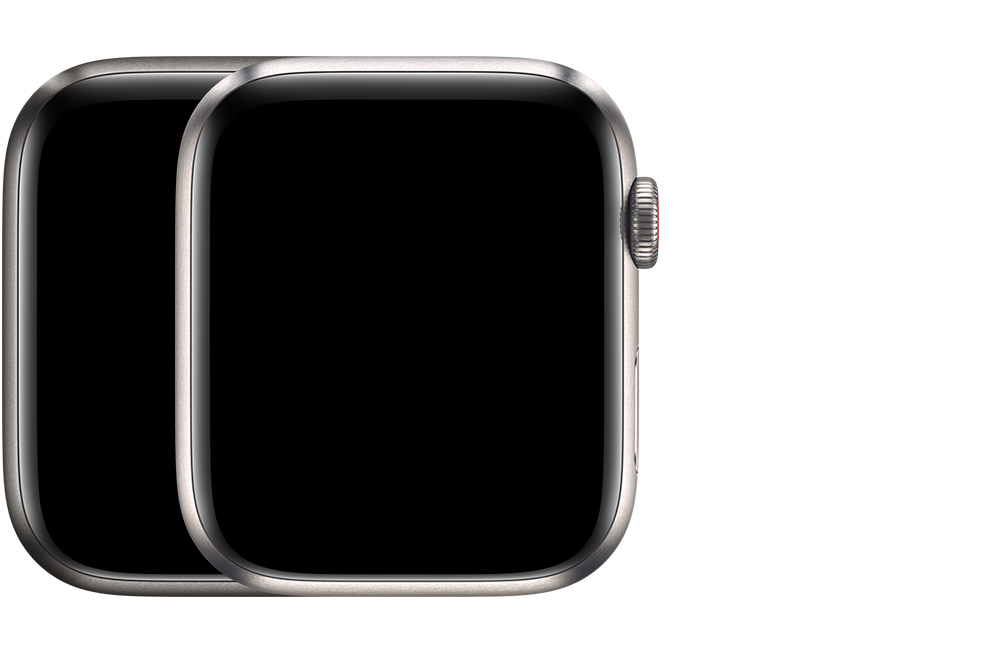
Apple Watch Edition (GPS + Cellular) Titanium
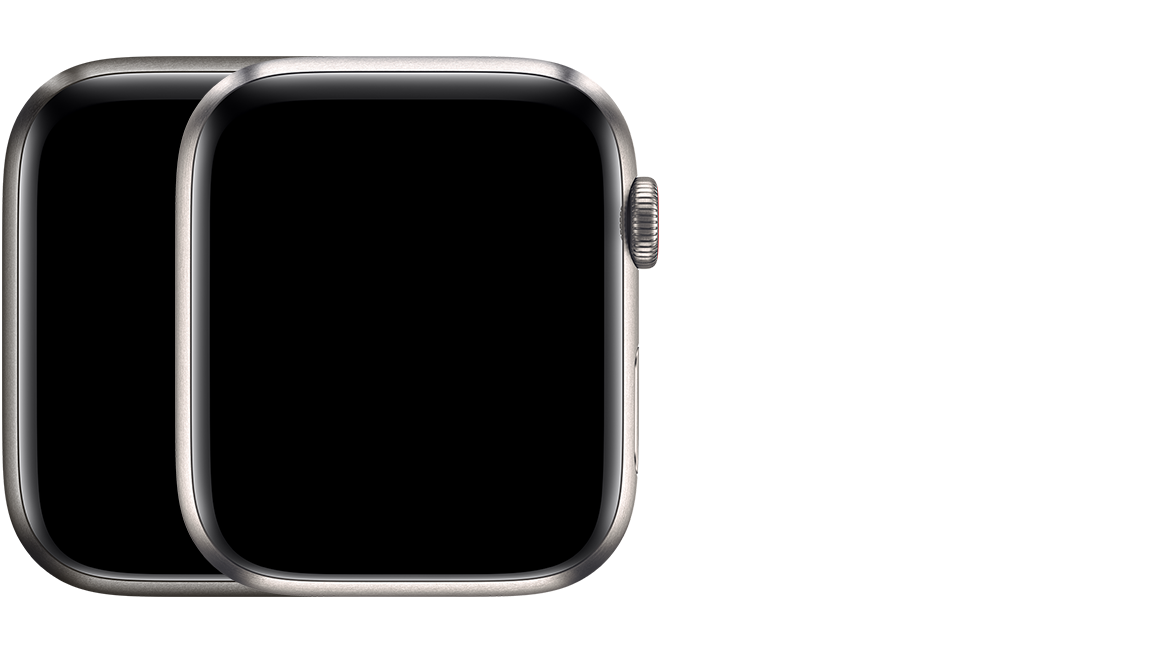
41mm case (Model: A2475 North America; A2476 Europe, Asia Pacific, and China mainland) 45mm case (Model: A2477 North America; A2478 Europe, Asia Pacific, and China mainland) Natural or Space Black titanium with a red ring on the Digital Crown Sapphire crystal, Retina display, and ceramic back
Apple Watch Series 6
To find your case size and more information, check the engraving on the back of your Apple Watch.
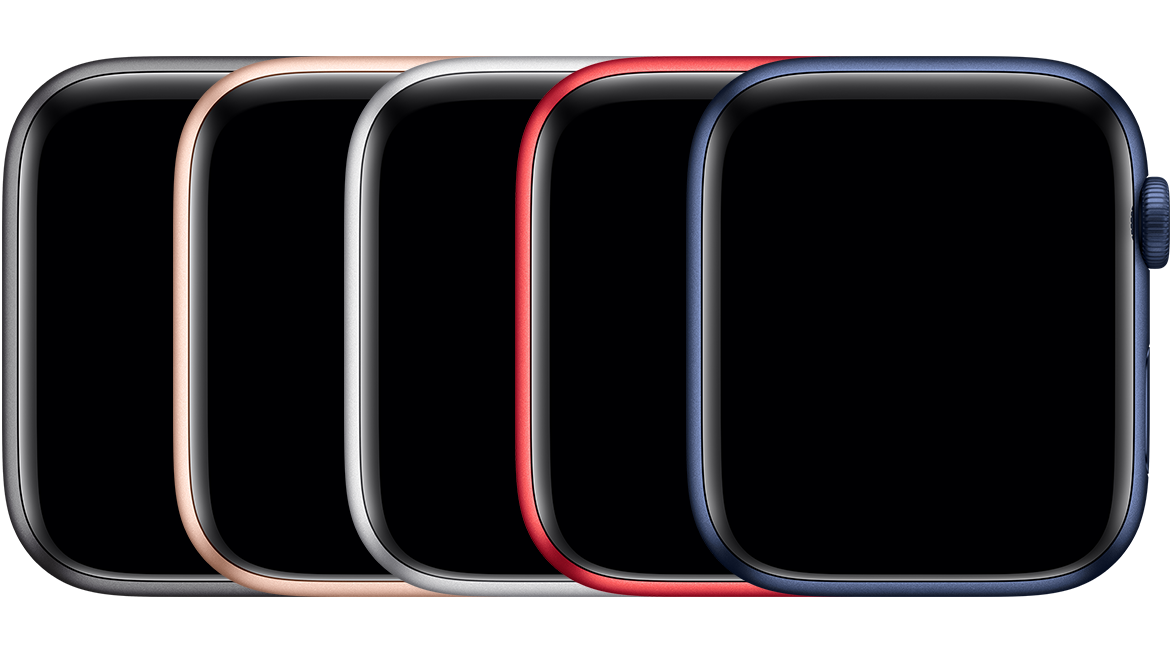
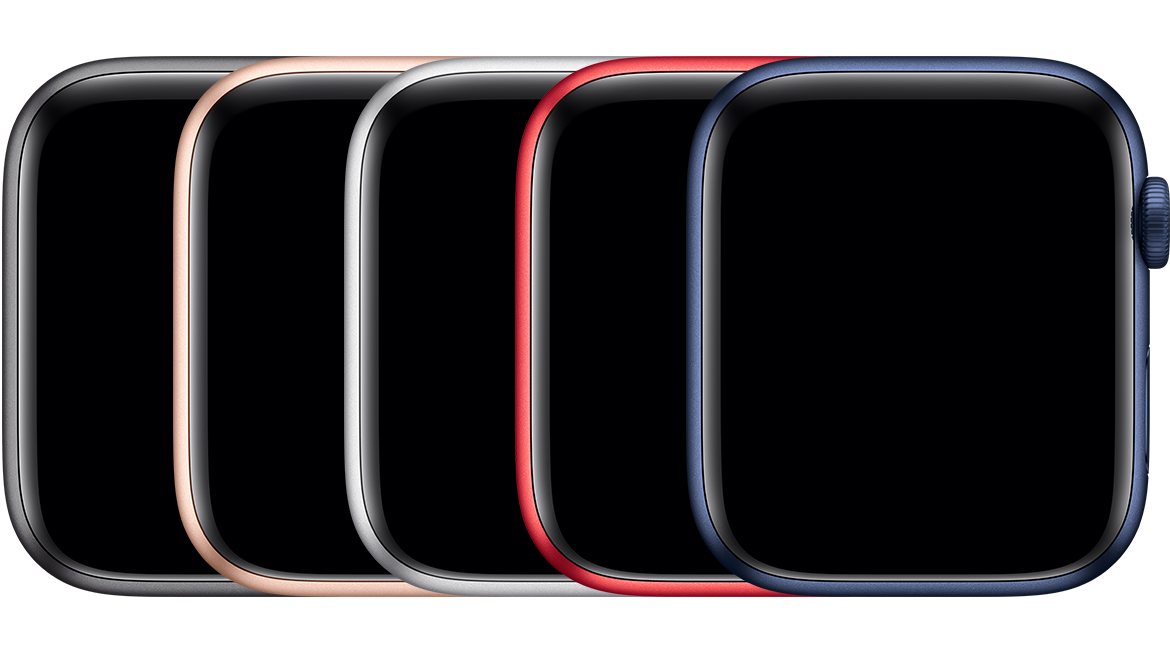
Apple Watch Series 6 (GPS)
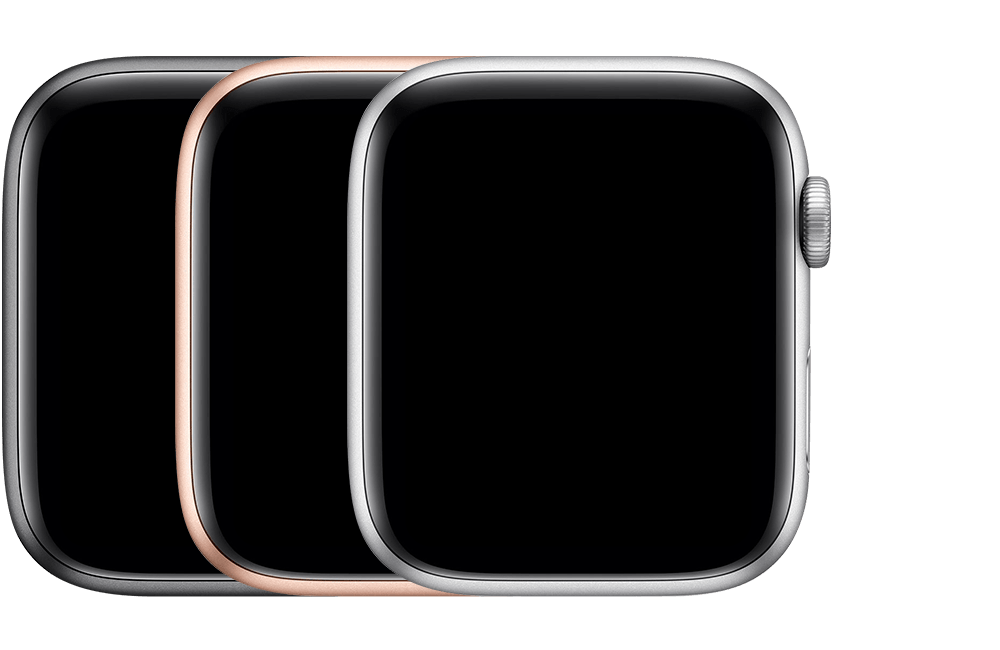
40mm case (Model: A2291) 44mm case (Model: A2292) Space gray, gold, silver, red, or blue aluminum Ion-X glass, Retina display, and ceramic back
Apple Watch Nike (GPS)
40mm case (Model: A2291) 44mm case (Model: A2292) Space gray or silver aluminum Ion-X glass, Retina display, and ceramic back with Nike logo
Apple Watch Series 6 (GPS + Cellular) Aluminum
40mm case (Model: A2293 North America; A2375 Europe, Asia Pacific, and China mainland) 44mm case (Model: A2294 North America; A2376 Europe, Asia Pacific, and China mainland) Space gray, gold, silver, red, or blue aluminum with a red ring on the Digital Crown Ion-X glass, Retina display, and ceramic back
Apple Watch Nike (GPS + Cellular)
40mm case (Model: A2293 North America; A2375 Europe, Asia Pacific, and China mainland) 44mm case (Model: A2294 North America; A2376 Europe, Asia Pacific, and China mainland) Space gray or silver aluminum with a red ring on the Digital Crown Ion-X glass, Retina display, and ceramic back with Nike logo
Apple Watch Series 6 (GPS + Cellular) Stainless Steel
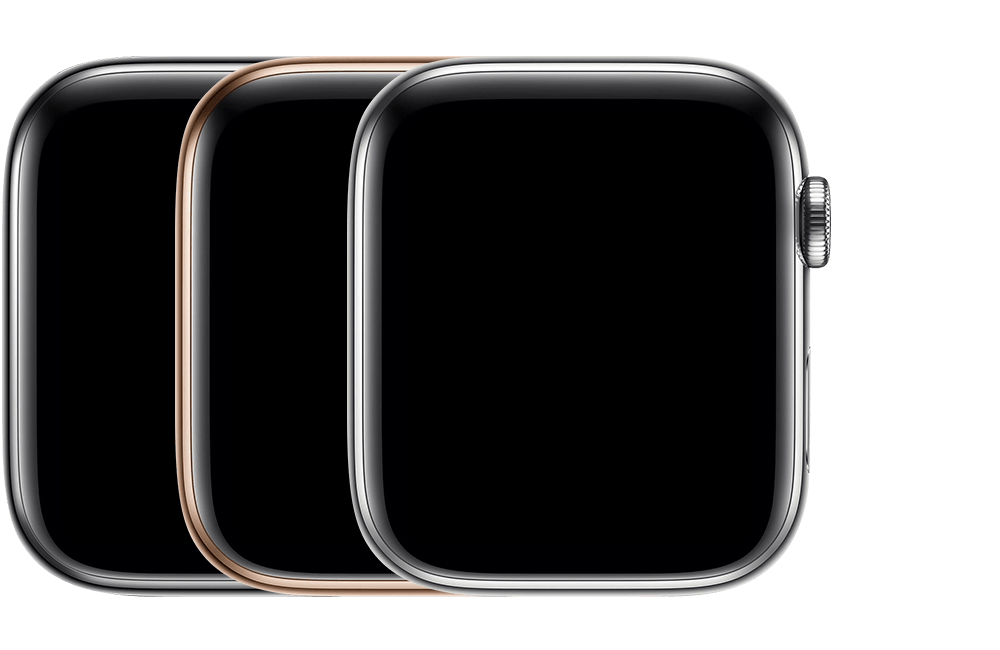
40mm case (Model: A2293 North America; A2375 Europe, Asia Pacific, and China mainland) 44mm case (Model: A2294 North America; A2376 Europe, Asia Pacific, and China mainland) Silver stainless steel, graphite stainless steel, or gold stainless steel, with a red ring on the Digital Crown Sapphire crystal, Retina display, and ceramic back
Apple Watch Hermès (GPS + Cellular)
40mm case (Model: A2293 North America; A2375 Europe, Asia Pacific, and China mainland) 44mm case (Model: A2294 North America; A2376 Europe, Asia Pacific, and China mainland) Silver stainless steel or space black stainless steel with a red ring on the Digital Crown Sapphire crystal, Retina display, and ceramic back with Hermès logo
Apple Watch Edition (GPS + Cellular) Titanium
40mm case (Model: A2293 North America; A2375 Europe, Asia Pacific, and China mainland) 44mm case (Model: A2294 North America; A2376 Europe, Asia Pacific, and China mainland) Titanium or space black titanium with a red ring on the Digital Crown Sapphire crystal, Retina display, and ceramic back
Apple Watch SE
To find your case size and more information, check the engraving on the back of your Apple Watch.
Apple Watch SE (GPS)
40mm case (Model: A2351) 44mm case (Model: A2352) Space gray, gold, or silver aluminum Ion-X glass, Retina display, and ceramic back
Apple Watch Nike (GPS)
40mm case (Model: A2351) 44mm case (Model: A2352) Space gray or silver aluminum Ion-X glass, sapphire crystal, Retina display, and ceramic back with Nike logo
Apple Watch SE (GPS + Cellular) Aluminum
40mm case (Model: A2353 North America; A2355 Europe, Asia Pacific, and China mainland) 44mm case (Model: A2354 North America; A2356 Europe, Asia Pacific, and China mainland) Space gray, gold, or silver aluminum with a red ring on the Digital Crown Ion-X glass, sapphire crystal, Retina display, and ceramic back
Apple Watch Nike (GPS + Cellular)
40mm case (Model: A2353 North America; A2355 Europe, Asia Pacific, and China mainland) 44mm case (Model: A2354 North America; A2356 Europe, Asia Pacific, and China mainland) Space gray or silver aluminum with a red ring on the Digital Crown Ion-X glass, sapphire crystal, Retina display, and ceramic back with Nike logo
Apple Watch Series 5
To find your case size and more information, check the engraving on the back of your Apple Watch.
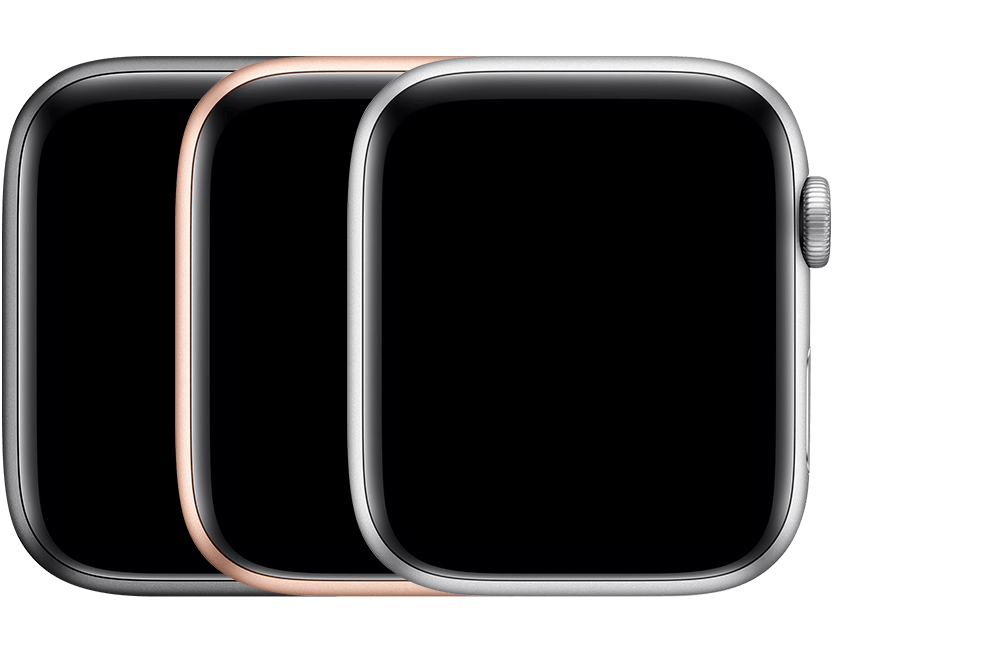
Apple Watch Series 5 (GPS)
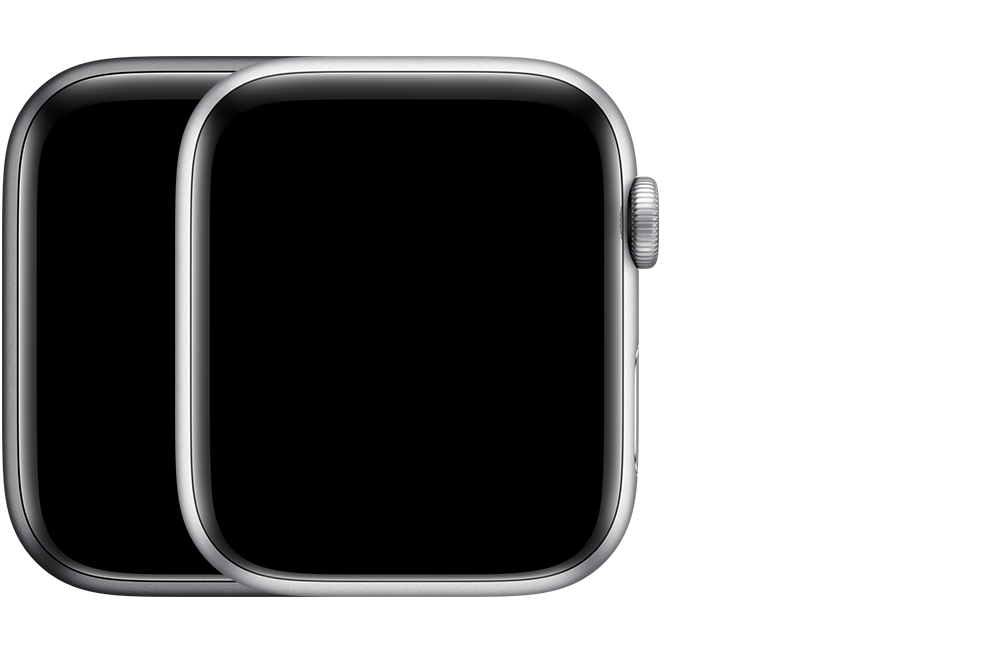
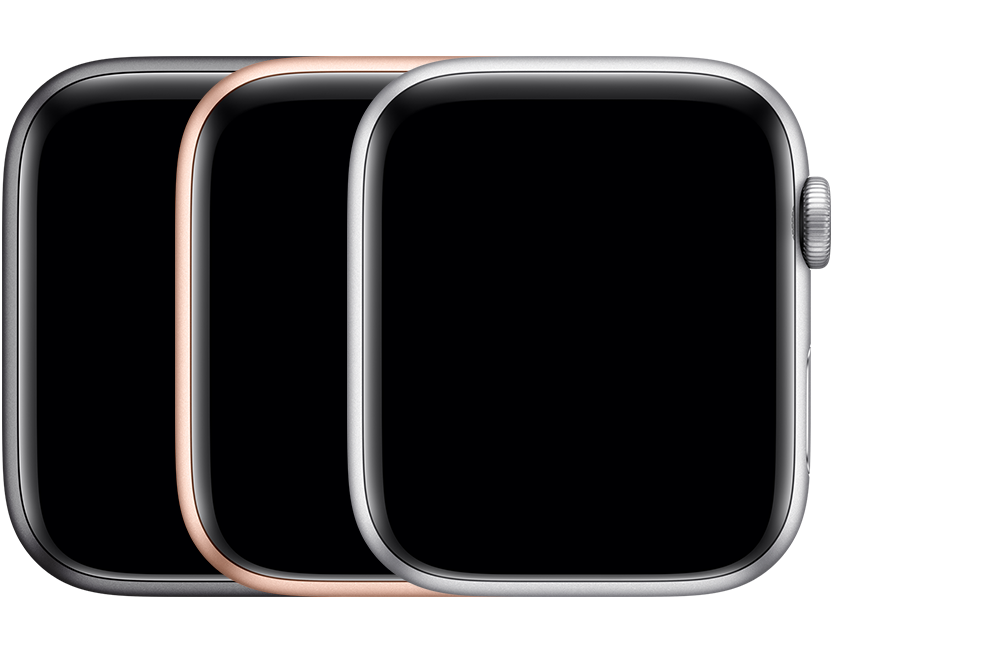
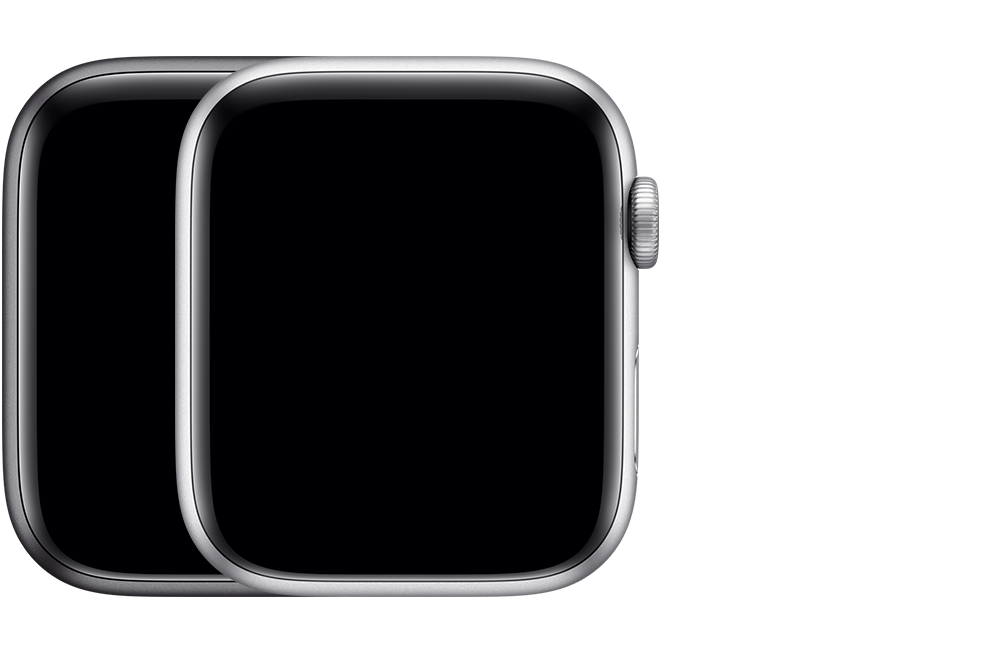
40mm case (Model: A2092) 44mm case (Model: A2093) Space gray, gold, or silver aluminum Ion-X glass, Retina display, and ceramic back
Apple Watch Nike (GPS)
40mm case (Model: A2092) 44mm case (Model: A2093) Space gray or silver aluminum Ion-X glass, sapphire crystal, Retina display, and ceramic back with Nike logo
Apple Watch Series 5 (GPS + Cellular) Aluminum
40mm case (Model: A2094 North America; A2156 Europe, Asia Pacific, and China mainland) 44mm case (Model: A2095 North America; A2157 Europe, Asia Pacific, and China mainland) Space gray, gold, or silver aluminum with a red ring on the Digital Crown Ion-X glass, sapphire crystal, Retina display, and ceramic back
Apple Watch Nike (GPS + Cellular)
40mm case (Model: A2094 North America; A2156 Europe, Asia Pacific, and China mainland) 44mm case (Model: A2095 North America; A2157 Europe, Asia Pacific, and China mainland) Space gray or silver aluminum with a red ring on the Digital Crown Ion-X glass, sapphire crystal, Retina display, and ceramic back with Nike logo
Apple Watch Series 5 (GPS + Cellular) Stainless Steel
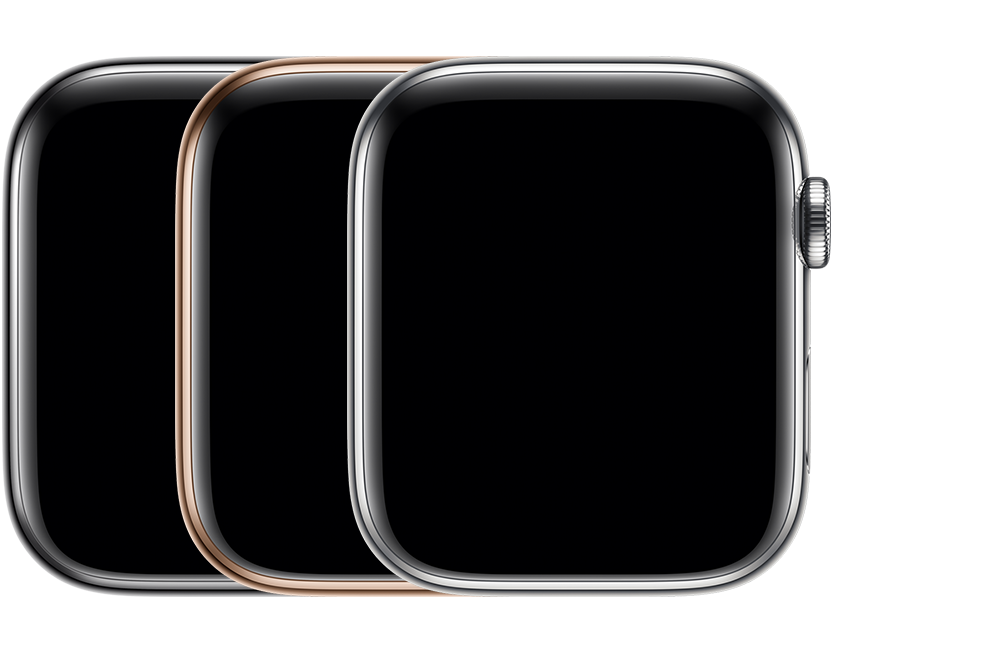
40mm case (Model: A2094 North America; A2156 Europe, Asia Pacific, and China mainland) 44mm case (Model: A2095 North America; A2157 Europe, Asia Pacific, and China mainland) Stainless steel, space black stainless steel, or gold stainless steel, with a red ring on the Digital Crown Sapphire crystal, Retina display, and ceramic back
Apple Watch Hermès (GPS + Cellular)
40mm case (Model: A2094 North America; A2156 Europe, Asia Pacific, and China mainland) 44mm case (Model: A2095 North America; A2157 Europe, Asia Pacific, and China mainland) Stainless steel or space black stainless steel with a red ring on the Digital Crown Sapphire crystal, Retina display, and ceramic back with Hermès logo
Apple Watch Edition (GPS + Cellular) Titanium
40mm case (Model: A2094 North America; A2156 Europe, Asia Pacific, and China mainland) 44mm case (Model: A2095 North America; A2157 Europe, Asia Pacific, and China mainland) Dark or light titanium with a red ring on the Digital Crown Sapphire crystal, Retina display, and ceramic back
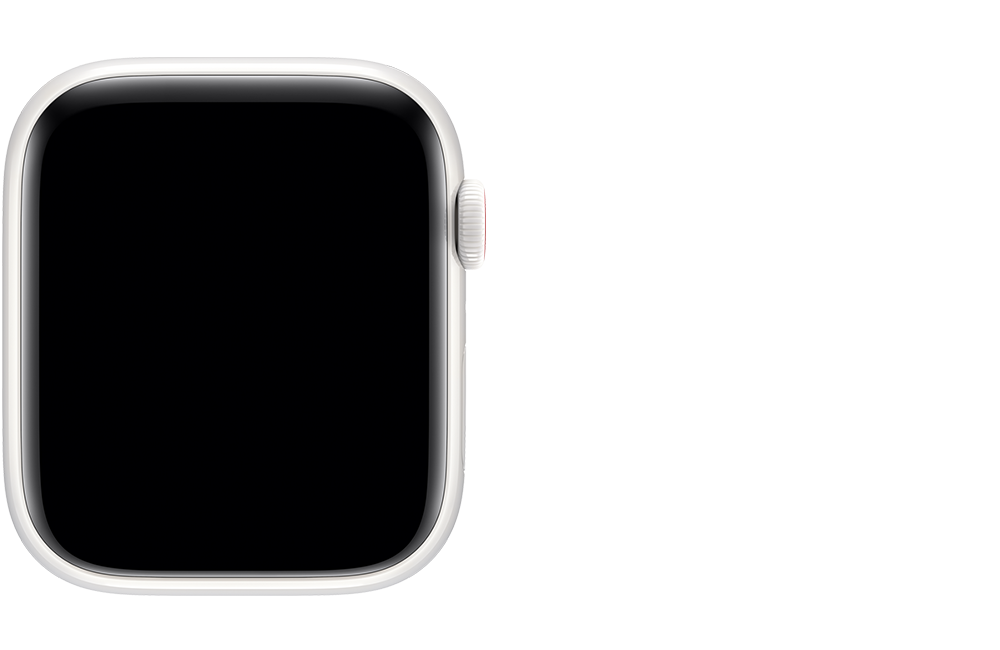
Apple Watch Edition (GPS + Cellular) Ceramic
40mm case (Model: A2094 North America; A2156 Europe, Asia Pacific, and China mainland) 44mm case (Model: A2095 North America; A2157 Europe, Asia Pacific, and China mainland) White ceramic with a red ring on the Digital Crown Sapphire crystal, Retina display, and ceramic back
Apple Watch Series 4
To find your case size and more information, check the engraving on the back of your Apple Watch.
Apple Watch Series 4 (GPS)
40mm case (Model: A1977) 44mm case (Model: A1978) Space gray, gold, or silver aluminum Ion-X glass, Retina display, and ceramic back
Apple Watch Nike+ (GPS)
40mm case (Model: A1977) 44mm case (Model: A1978) Space gray or silver aluminum Ion-X glass, Retina display, and ceramic back with Nike logo
Apple Watch Series 4 (GPS + Cellular) Aluminum
40mm case (Model: A1975 North America, A2007 Europe, Asia Pacific, and China mainland) 44mm case (Model: A1976 North America, A2008 Europe, Asia Pacific, and China mainland) Space gray, gold, or silver aluminum with a red ring on the Digital Crown Ion-X glass, sapphire crystal, Retina display, and ceramic back
Apple Watch Nike+ (GPS + Cellular)
40mm case (Model: A1975 North America, A2007 Europe, Asia Pacific, and China mainland) 44mm case (Model: A1976 North America, A2008 Europe, Asia Pacific, and China mainland) Space gray or silver aluminum with a red ring on the Digital Crown Ion-X glass, sapphire crystal, Retina display, and ceramic back with Nike logo
Apple Watch Series 4 (GPS + Cellular) Stainless Steel
40mm case (Model: A1975 North America, A2007 Europe, Asia Pacific, and China mainland) 44mm case (Model: A1976 North America, A2008 Europe, Asia Pacific, and China mainland) Stainless steel, space black stainless steel, or gold stainless steel, with a red ring on the Digital Crown Sapphire crystal, Retina display, and ceramic back
Apple Watch Hermès (GPS + Cellular)
40mm case (Model: A1975 North America, A2007 Europe, Asia Pacific, and China mainland) 44mm case (Model: A1976 North America, A2008 Europe, Asia Pacific, and China mainland) Stainless steel with a red ring on the Digital Crown Sapphire crystal, Retina display, and ceramic back with Hermès logo
Apple Watch Series 3
To find your case size and more information, check the engraving on the back of your Apple Watch.
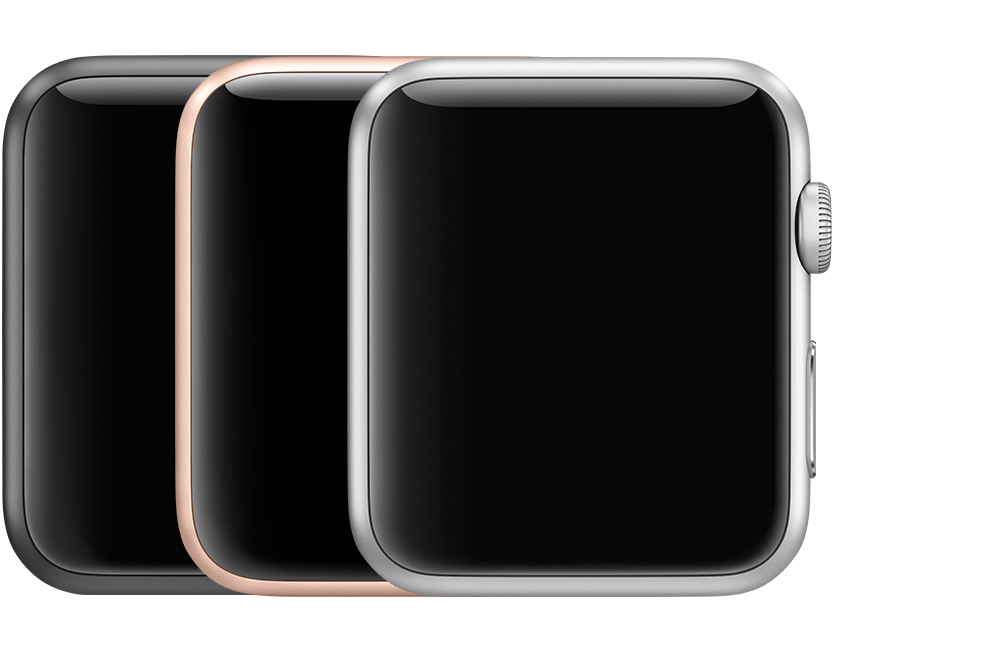
Apple Watch Series 3 (GPS)
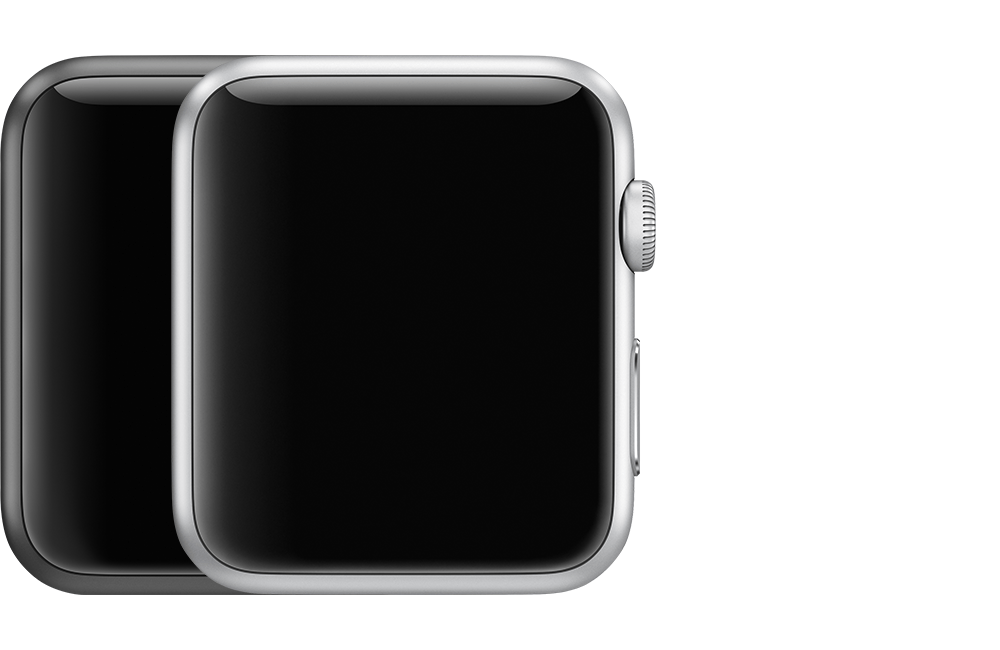
38mm case (Model: A1858) 42mm case (Model: A1859) Space gray, gold, or silver aluminum Ion-X glass, Retina display, and composite back
Apple Watch Nike+ (GPS)
38mm case (Model: A1858) 42mm case (Model: A1859) Space gray or silver aluminum Ion-X glass, Retina display, and composite back
Apple Watch Series 3 (GPS + Cellular) Aluminum
38mm case (Model: A1860 Americas, A1889 Europe and Asia Pacific, A1890 China mainland) 42mm case (Model: A1861 Americas, A1891 Europe and Asia Pacific, A1892 China mainland) Space gray, gold, or silver aluminum with a red cap on the Digital Crown Ion-X glass, Retina display, and ceramic back
Apple Watch Nike+ (GPS + Cellular)
38mm case (Model: A1860 Americas, A1889 Europe and Asia Pacific, A1890 China mainland) 42mm case (Model: A1861 Americas, A1891 Europe and Asia Pacific, A1892 China mainland) Space gray or silver aluminum with a red cap on the Digital Crown Ion-X glass, Retina display, and ceramic back with Nike logo
Apple Watch Series 3 (GPS + Cellular) Stainless Steel
38mm case (Model: A1860 Americas, A1889 Europe and Asia Pacific, A1890 China mainland) 42mm case (Model: A1861 Americas, A1891 Europe and Asia Pacific, A1892 China mainland) Space black stainless steel or stainless steel with a red cap on the Digital Crown Sapphire crystal, Retina display, and ceramic back
Apple Watch Hermès (GPS + Cellular)
38mm case (Model: A1860 Americas, A1889 Europe and Asia Pacific, A1890 China mainland) 42mm case (Model: A1861 Americas, A1891 Europe and Asia Pacific, A1892 China mainland) Stainless steel with a red cap on the Digital Crown Sapphire crystal, Retina display, and ceramic back with Hermès logo
Apple Watch Edition (GPS + Cellular)
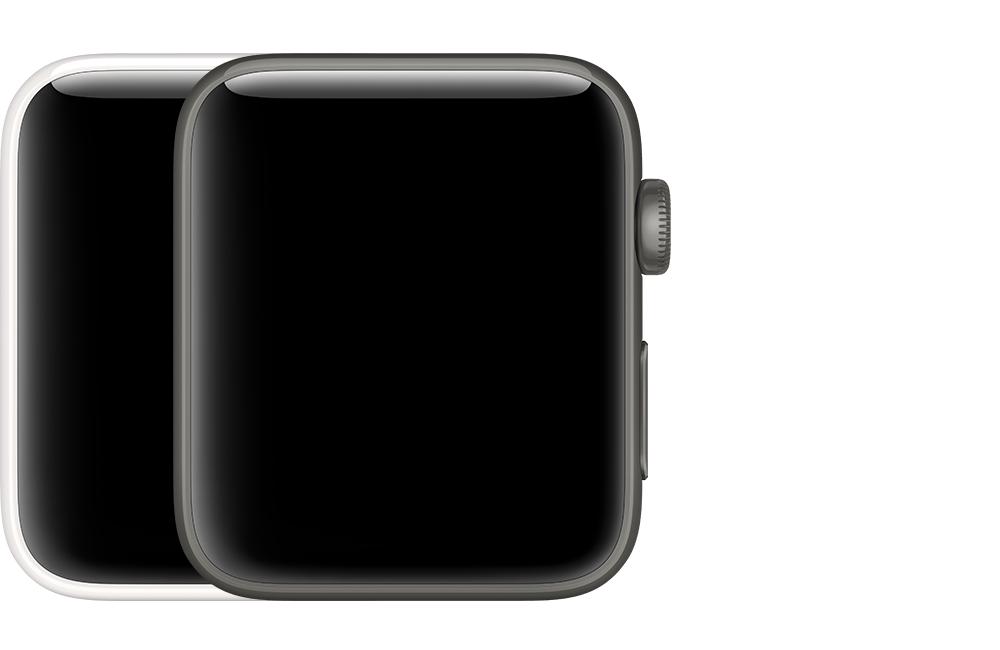
38mm case (Model: A1860 Americas, A1889 Europe and Asia Pacific, A1890 China mainland) 42mm case (Model: A1861 Americas, A1891 Europe and Asia Pacific, A1892 China mainland) White or gray ceramic with a red cap on the Digital Crown Sapphire crystal, Retina display, and ceramic back
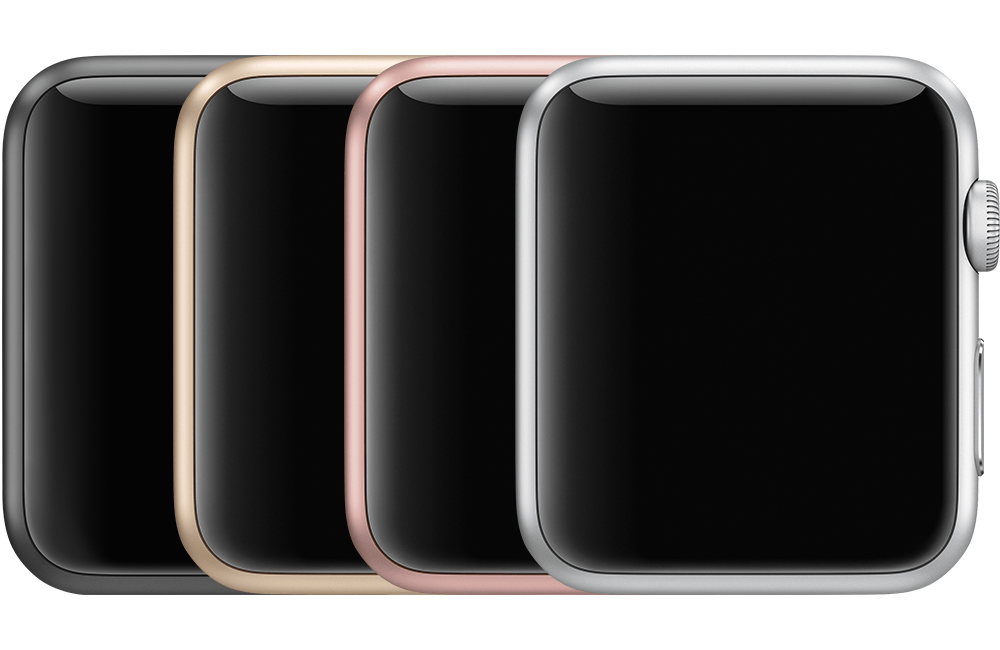
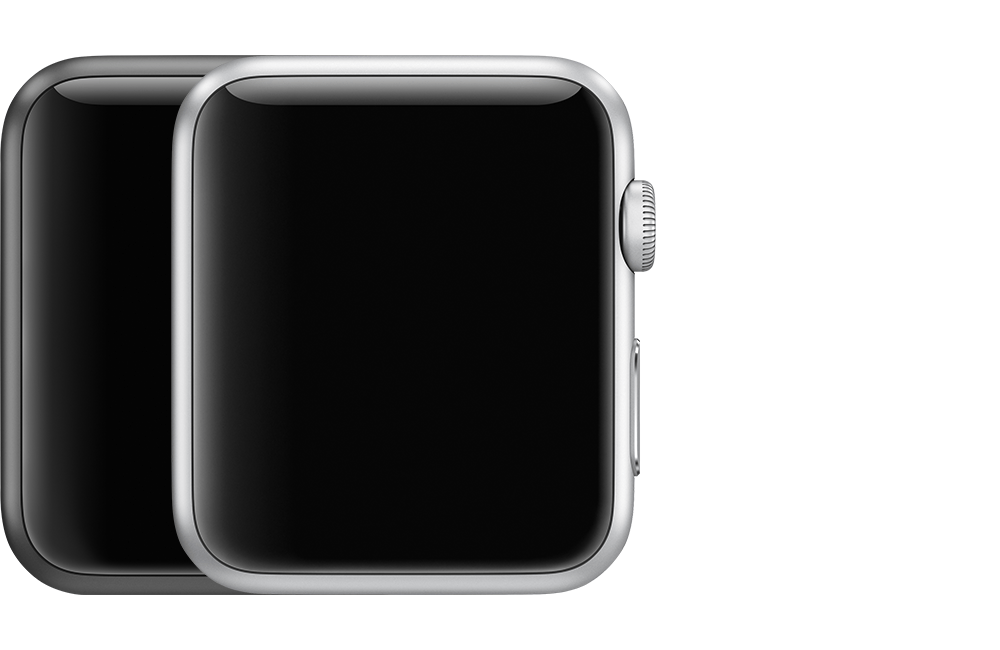
Apple Watch Series 2
To find your case size and more information, check the engraving on the back of your Apple Watch.
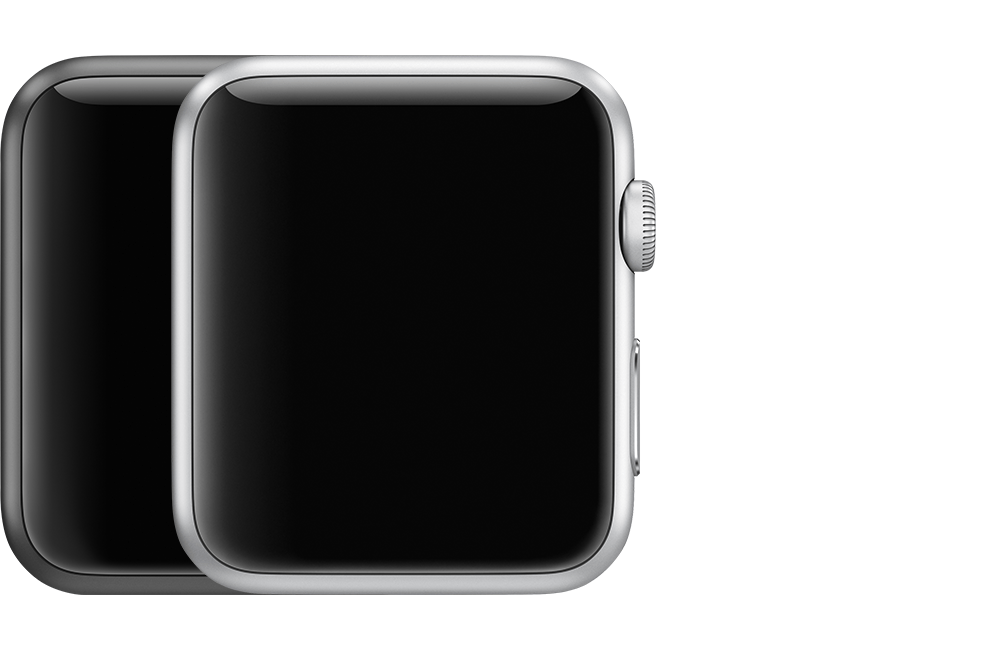
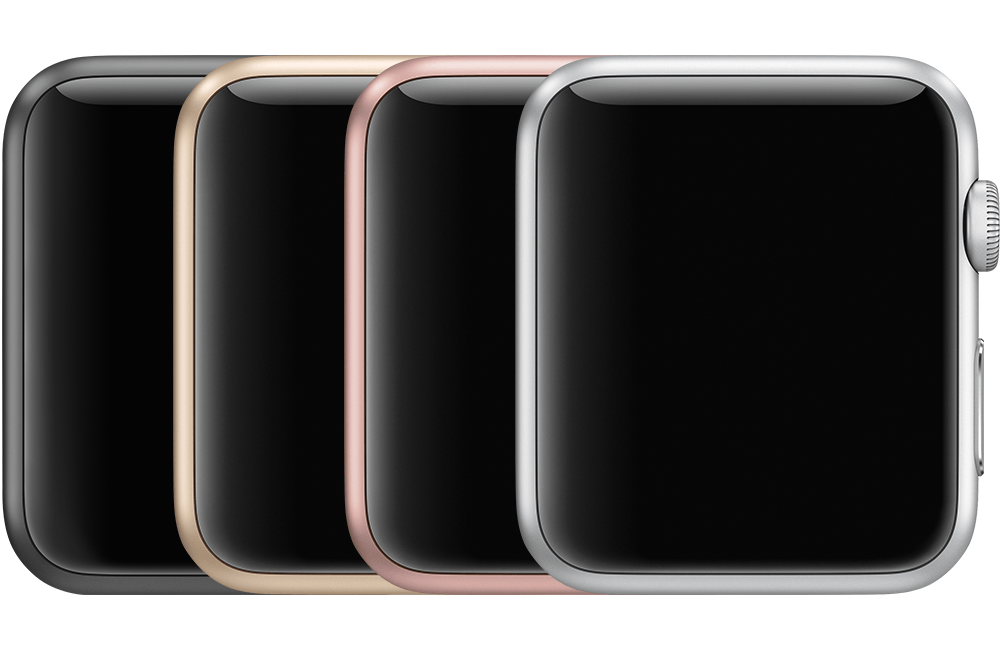
Apple Watch Series 2 Aluminum
38mm case (Model: A1757) 42mm case (Model: A1758) Space gray, gold, rose gold, or silver aluminum Ion-X glass, Retina display, and ceramic back
Apple Watch Nike+
38mm case (Model: A1757) 42mm case (Model: A1758) Space gray or silver aluminum Ion-X glass, Retina display, and ceramic back with Nike logo
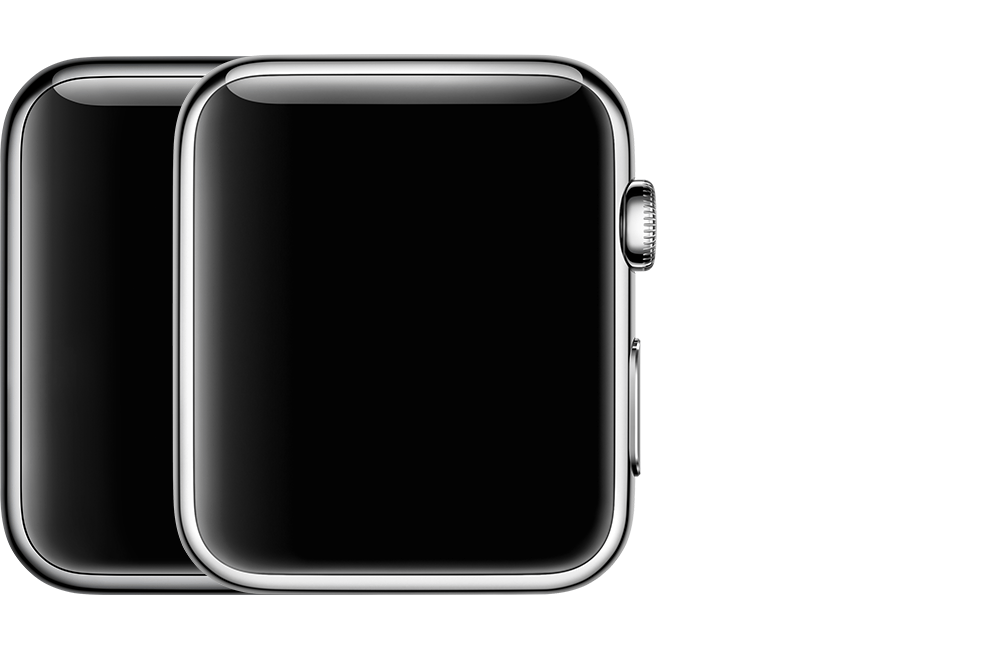
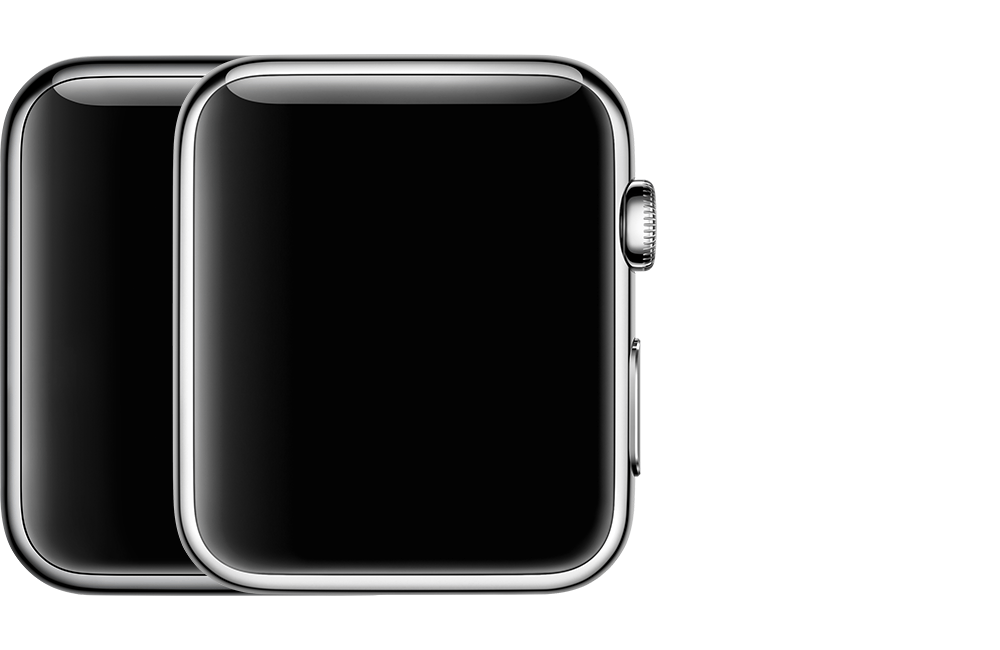
Apple Watch Series 2 Stainless Steel
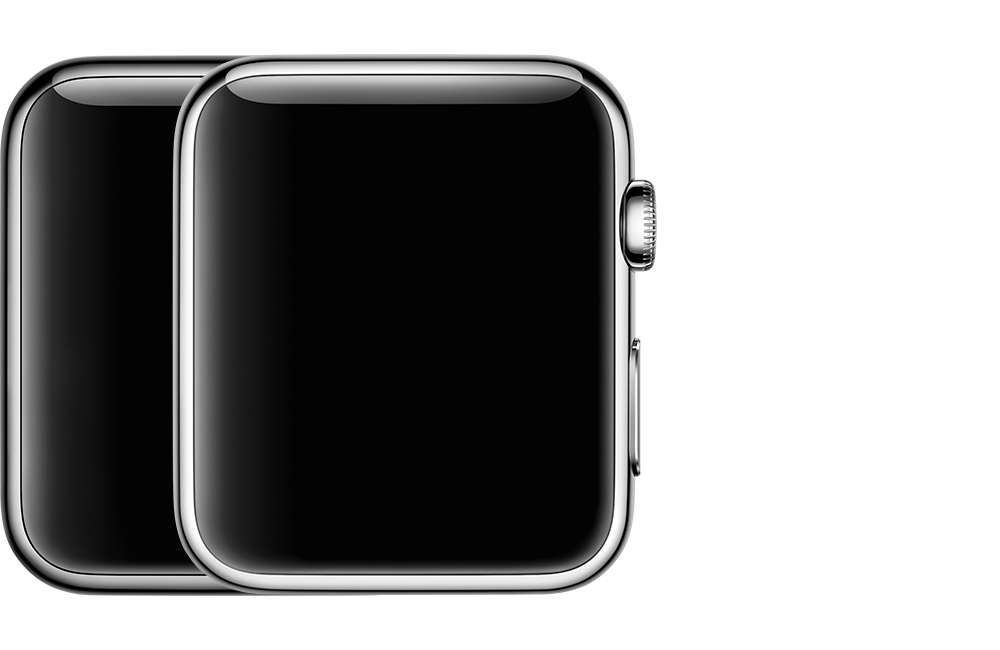
38mm case (Model: A1757) 42mm case (Model: A1758) Space black stainless steel or stainless steel Sapphire crystal, Retina display, and ceramic back
Apple Watch Hermès
38mm case (Model: A1757) 42mm case (Model: A1758) Stainless steel Sapphire crystal, Retina display, and a ceramic back with Hermès logo
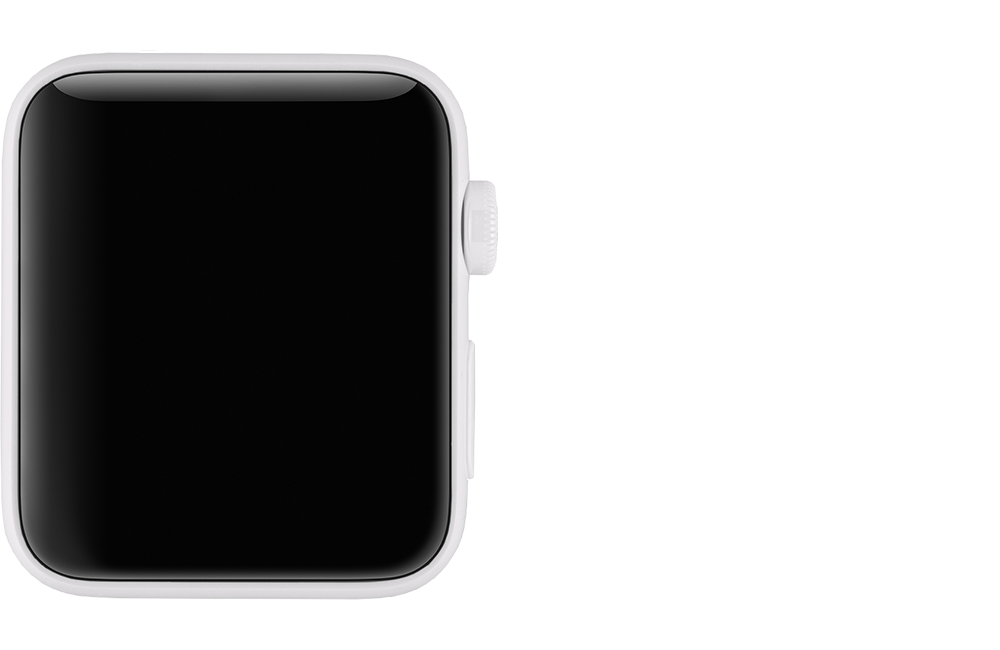
Apple Watch Edition
38mm case (Model: A1816) 42mm case (Model: A1817) White ceramic Sapphire crystal, Retina display, and ceramic back
Apple Watch Series 1
To find your case size and more information, check the engraving on the back of your Apple Watch.
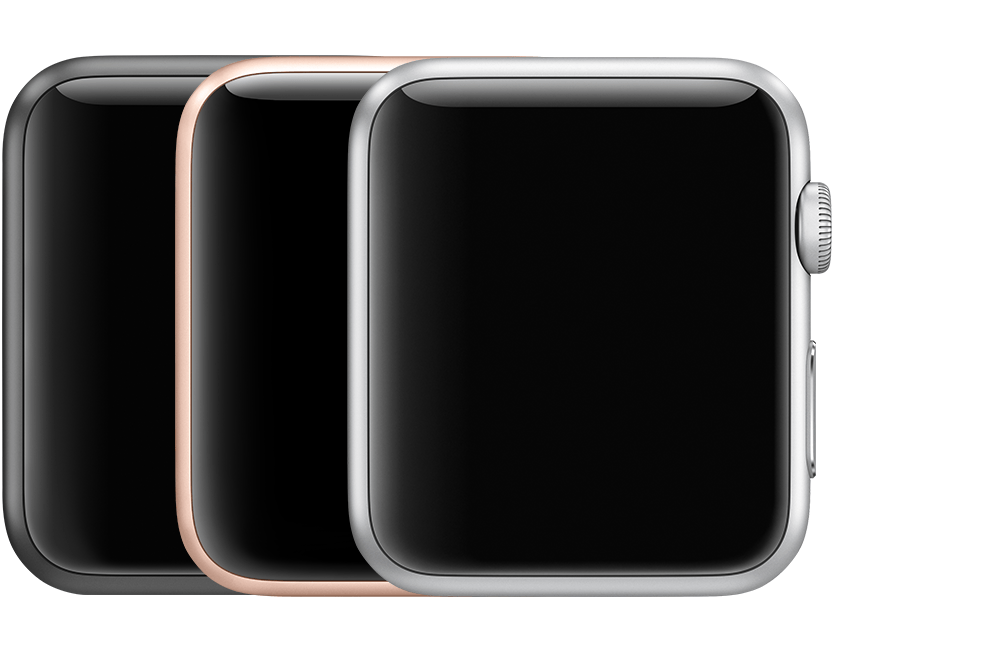
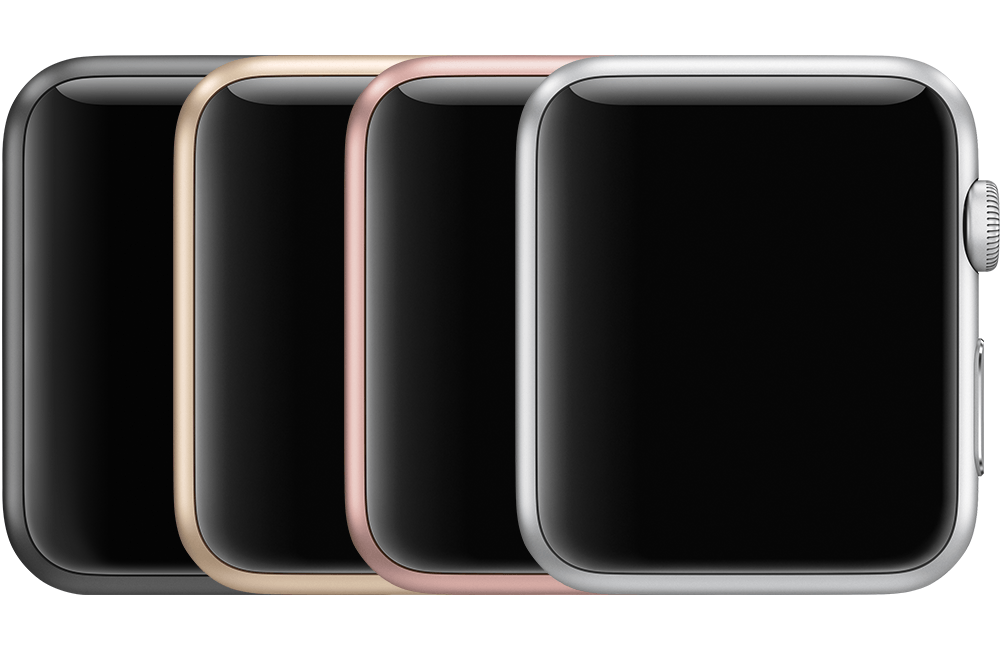
Apple Watch Series 1 Aluminum
38mm case (Model: A1802) 42mm case (Model: A1803) Space gray, gold, rose gold, or silver aluminum Ion-X glass, Retina display, and composite back
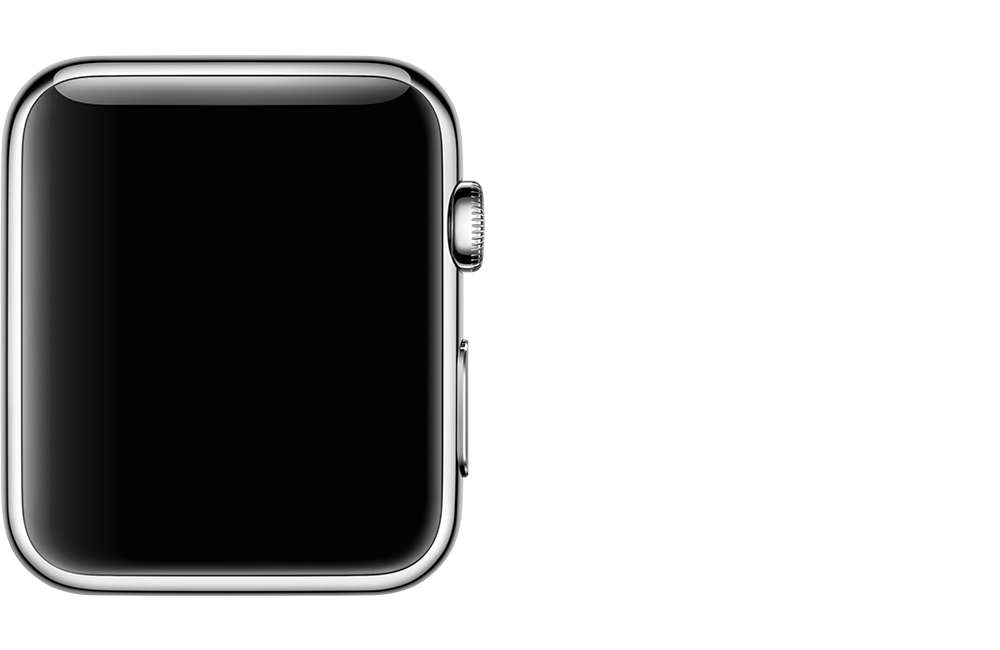
Apple Watch (1st generation)
To find your case size and more information, check the engraving on the back of your Apple Watch.
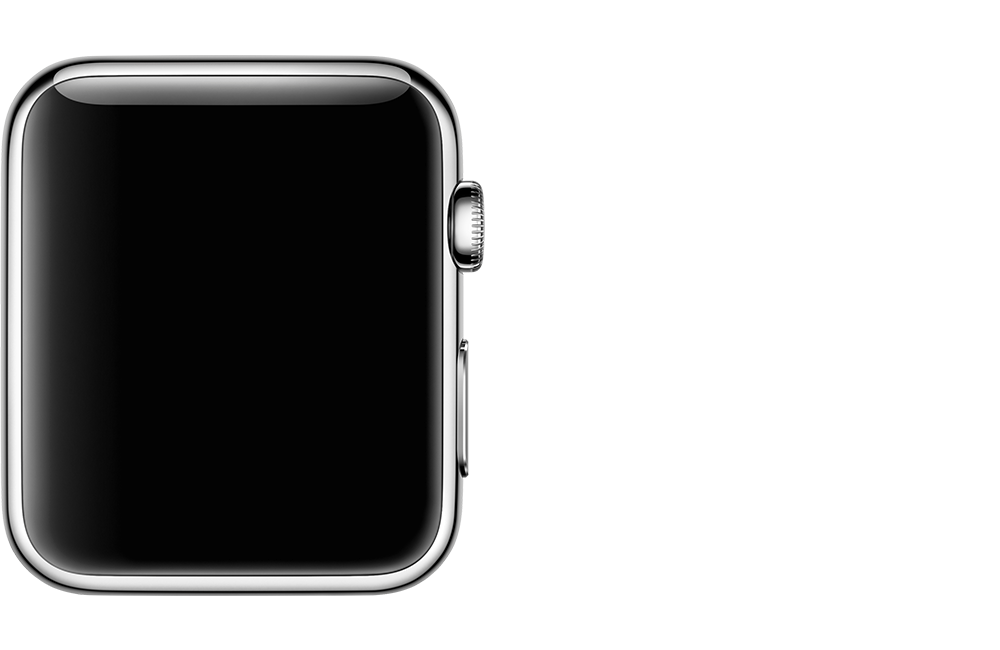
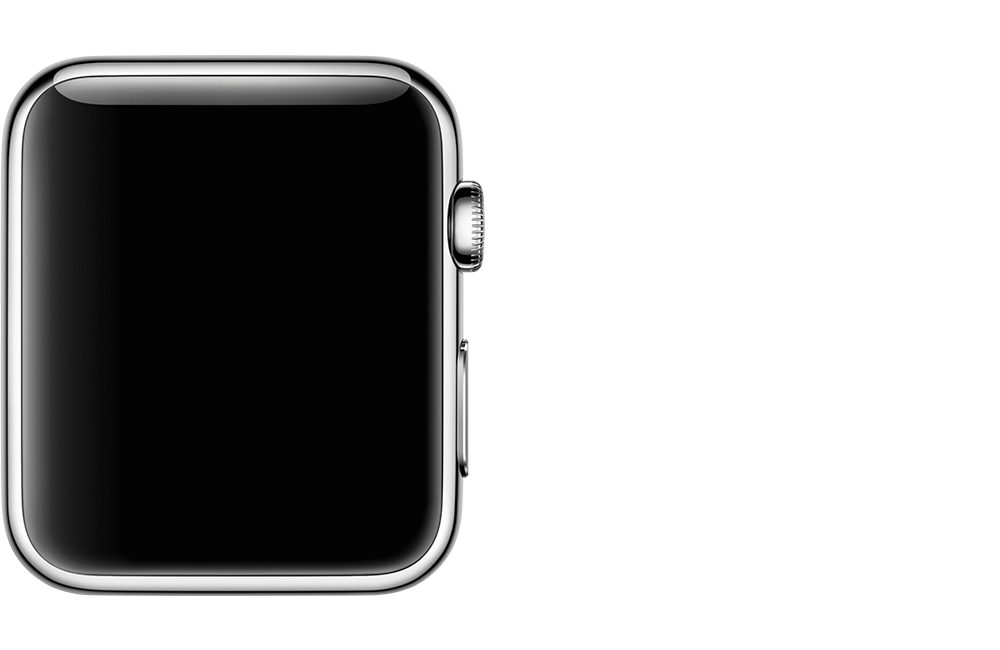
Apple Watch
38mm case (Model: A1553) 42mm case (Model: A1554) Space black stainless steel, or stainless steel Sapphire crystal, Retina display, and ceramic back
Apple Watch Sport
38mm case (Model: A1553) 42mm case (Model: A1554) Space gray, gold, rose gold, or silver aluminum Ion-X glass, Retina display, and composite back
Apple Watch Hermès
38mm case (Model: A1553) 42mm case (Model: A1554) Stainless steel Sapphire crystal, Retina display, and ceramic back with Hermès logo
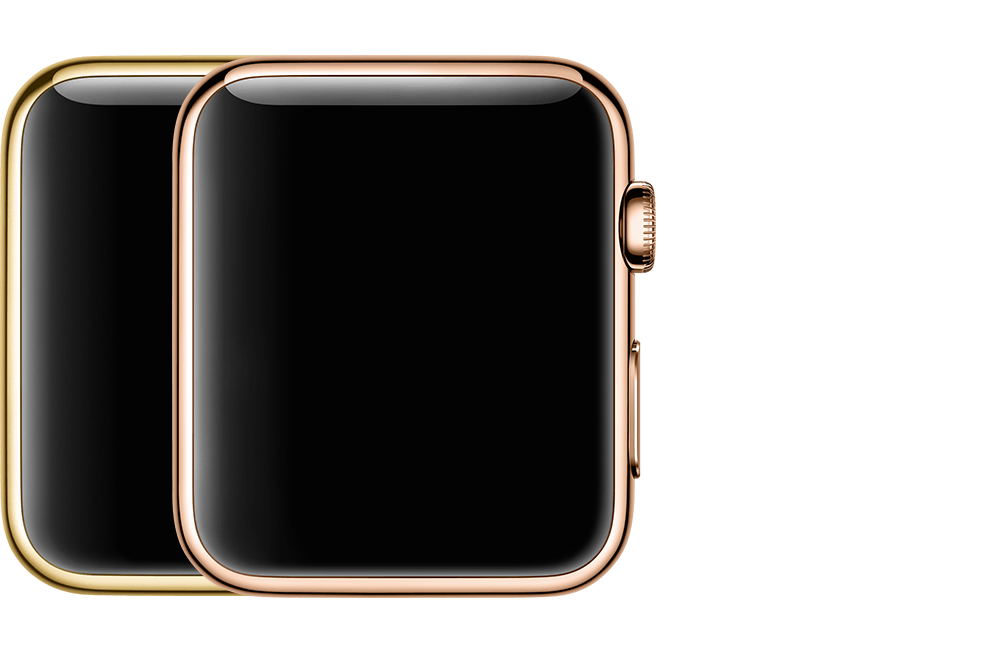
Apple Watch Edition
38mm case (Model: A1553) 42mm case (Model: A1554) 18-Karat yellow gold with a red, blue, or black cap 18-Karat rose gold with a white, blue, or black cap Sapphire crystal, Retina display, and ceramic back
We fix smartphones, tablets, laptops, and select electronics, including iPhone, Samsung, Google Pixel, iPad, and more. If your device isn’t listed, contact us — we can usually source parts quickly. Most models, any problem.
Premium Aftermarket
Each option is clearly explained during booking so you can choose what fits your needs and budget.
How Long Does a Typical Fix Take?
Most common fixes (e.g. screens, batteries, backs, charging ports etc.) are completed within 30-minutes once the technician begins work. Some repairs or mail-in services may take longer depending on parts availability and scope of work.
Will My Device be 'Waterproof' or Retain Manufacturer IP68 or other Liquid and Dust Ratings?
The short answer - No. Technically, once you have dropped your device with significant g-force, have incurred general or excessive wear and tear, have physical damages or your device has been fixed/opened these actions will invalidate the IP68 rating guarantee from manufacturer. Although our technicians are trained to replace seals and adhesives where applicable, we don’t guarantee against liquid damages or guarantee the original IP68 rating, or any other rating, from the manufacturer. Read more about this here.
🛡️ Warranty & Guarantees
Does Your Fix Come With a Warranty or any Guarantee?
Yes. All screen and display fixes include a lifetime warranty, and most other parts are protected by up to a 1-year warranty.
In every case, our Install Guarantee also applies — your no-nonsense, fast-track to support if anything isn’t installed or performing correctly within its appropriate quality tier, from installation through 24 hours post-fix (unless otherwise stated — e.g. water-damaged, frame-damaged scenarios).
Yes. All fixes are completed by trained, certifiedfTech™ technicians, following Fix Factory standards and quality checks, including W.I.S.E certifications.
Do You Test the Device After Fix?
Every device is tested prior to fix, and before hand-off post-fix, to ensure full functionality in compliance with our Install Guarantee.
🚗 Mobile & On-Site Fix (Doorstep Repair)
How Does Mobile OnSite (Doorstep) Fix Work?
Our certifiedfTech™ technicians come to you — home, office, or another safe & convenient location. The fix is completed inside Your Tech's equipped service vehicle.
Is there an Extra Cost for Mobile Onsite Service?
Mobile service pricing is included in your quote - there's no charge. No surprise call-out fees, ever.
Do I Need to be Present During the Fix?
The short answer, Yes, we require the device owner (or authorized user) to be present to approve the repair and test the device afterward. However, we understand when life happens, or you prefer to use your mail-box instead for contactless service. Just let us know your preference when booking, and we'll take care of it.
💳 Pricing & Payments
Are Your Prices Upfront?
Yes, always. All pricing is provided before work begins. If anything unexpected is found, we contact you first — no work without approval. Plus get instant online quotes.
What Payment Methods do You Accept?
We accept major Credit Cards, Debit, Cash, Email Money Transfer, Afterpay and Sezzle.
Ship your device using our instructions and supplied shipping label (via email, printed).
We fix it same day it's received and send it back fully tested.
You’ll receive tracking updates at every step, with direct order communication at key checkpoints.
Is Mail-in Fix Safe and Secure?
Absolutely. Devices are logged, photographed, and tracked throughout the process with insurance. Also, Your data remains yours — and we do not access personal content, ever. We do recommend ensuring you have a current backup, and when possible ensure the device is in maintenance or repair mode.
🔐 Data & Privacy
Will My Data be Safe?
Yes. Your privacy and security matters. We do not access personal data unless absolutely required for diagnostics — and only with your consent, usually in front of you.
Should I Back up My Device?
We strongly recommend backing up your device before any fix. While data loss is rare, it’s always best practice.
🍂 🍂 🍂 🍂 🍂 🍂 🍂 🍂 🍂 🍂 🍂 🍂 Fall Fix Up • Limited-Time Offer Fall Fix Up That Cracked Screen. Save $30 on every smartphone screen fix. New routines. New season.… Read more: 🍂 Get Fixed™ Fall Fix-Up
INTRODUCING FIXIQ™ Your AI-Powered Device Fix Assistant. Cracked screen? Battery draining too fast? Device not charging? Meet FixIQ™, the AI-powered device fix assistant from Fix Factory (Canada). Built using years of real-world fix experience, FixIQ… Read more: Introducing FixIQ™: The AI That Helps You Get Fixed. Right. Onsite.
Multi-Fix Savings Fix More. Save More. Why fix just one thing when you can save on fixing them together? Bundle eligible repairs and unlock additional multi-fix savings in one convenient visit. Popular Combo Screen +… Read more: Fix More, Save More! Get a Combo Quote Today.
Subscribe for $20 Coupon
Join our mailing list for exclusive offers, updates,
and a $20 coupon towards your next fix!