







If your iPhone, iPad, or iPod touch won’t turn on or is frozen

If your iPhone, iPad, or iPod touch won't turn on

If your device has a frozen screen, doesn’t respond when you touch it, or becomes stuck when you turn it on, learn what to do.

If your screen is black or frozen

If your screen is black or frozen, you might need to force restart your device. A force restart won’t erase the content on your device. You can force restart your device even if the screen is black or the buttons aren’t responding. Follow these steps:

  • iPad models that don’t have a Home button: Press and quickly release the Volume Up button. Press and quickly release the Volume Down button. Then press and hold the Power button until the device restarts.
  • iPhone 8 or later: Press and quickly release the Volume Up button. Press and quickly release the Volume Down button. Then press and hold the Side button until you see the Apple logo.
  • iPhone 7, iPhone 7 Plus, and iPod touch (7th generation): Press and hold both the Top (or Side) button and the Volume Down buttons until you see the Apple logo.
  • iPad with Home button, iPhone 6s or earlier, and iPod touch (6th generation) or earlier: Press and hold both the Home and the Top (or Side) buttons until you see the Apple logo.

If your device still won’t turn on or start up

Plug in your device and let it charge for up to one hour.
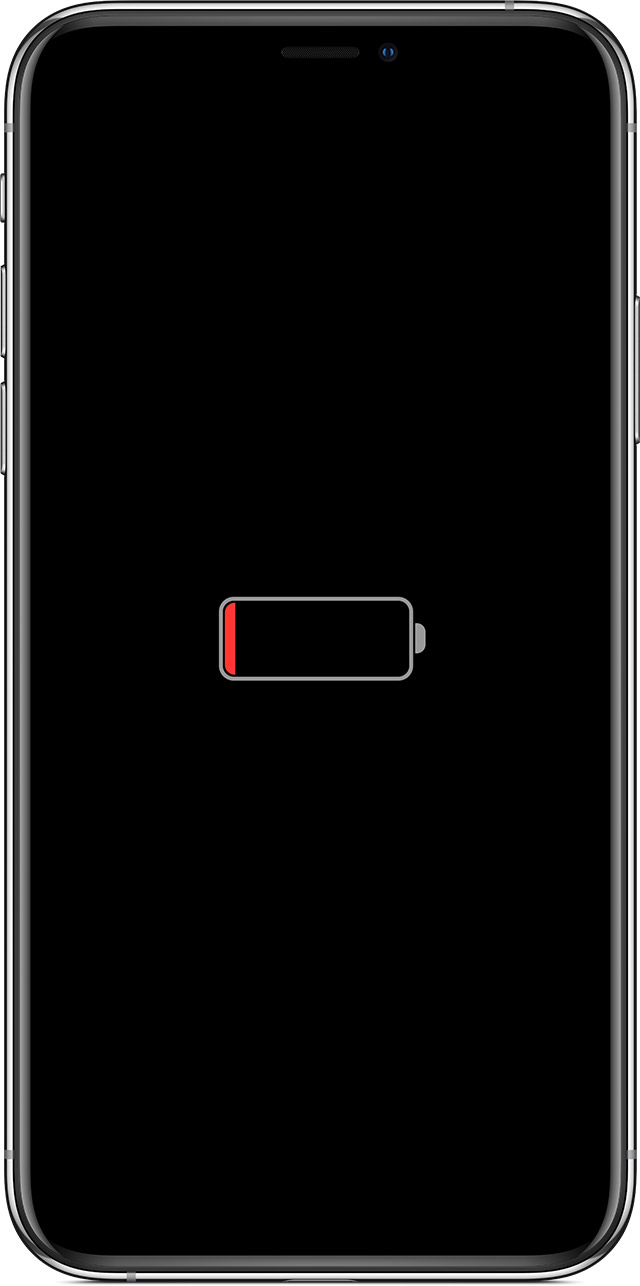
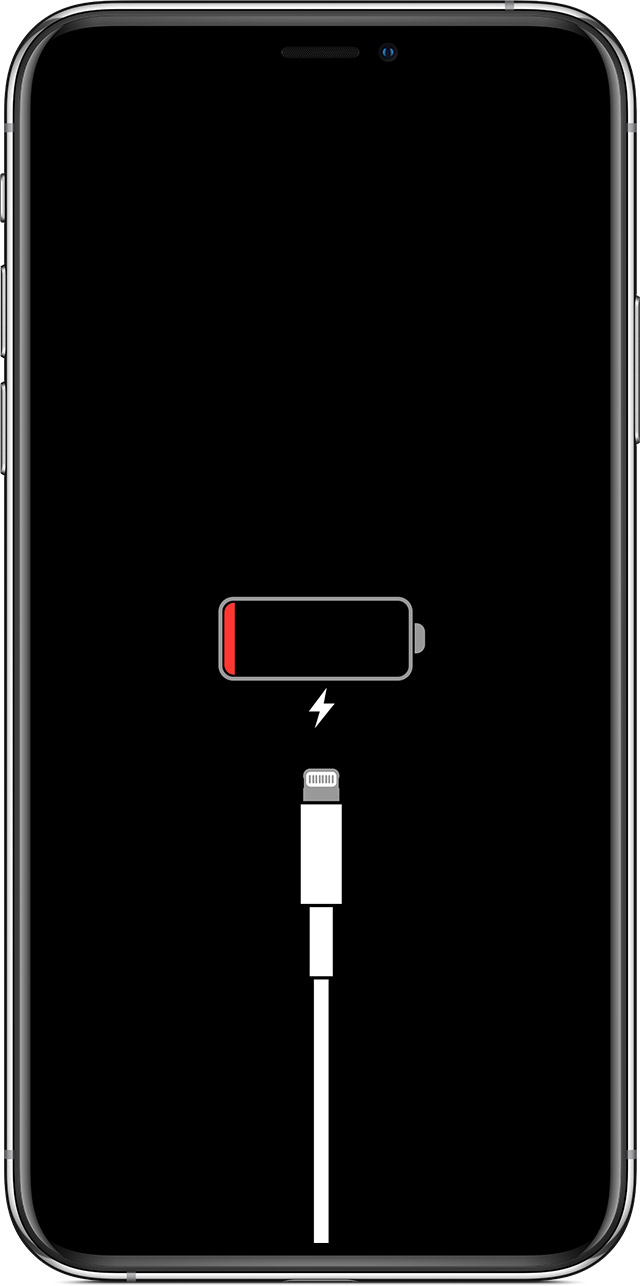
After a few minutes, you should see the charging screen.

If you don’t see the charging screen within an hour, or you see the connect to power screen, check the jack, USB cable, and power adapter. Make sure that everything is plugged in firmly, free of debris, and not damaged. You might want to try a different USB cable or power adapter.

If your device still doesn’t turn on, see what to do next.

If your device turns on but gets stuck during start up

If you see the Apple logo or a red or blue screen during startup, try these steps:

  1. Connect your device to a computer. On a Mac with macOS Catalina 10.15, open Finder. On a Mac with macOS Mojave 10.14 or earlier, or on a PC, open iTunes.
  2. Locate your device on your computer.
  3. While your device is connected, follow these steps:
    • iPad models that don’t have a Home button: Press and quickly release the Volume Up button. Press and quickly release the Volume Down button. Press and hold the Top button until your device begins to restart. Continue holding the Top button until your device goes into recovery mode.
    • iPhone 8 or later: Press and quickly release the Volume Up button. Press and quickly release the Volume Down button. Then, press and hold the Side button until you see the recovery mode screen.
    • iPhone 7, iPhone 7 Plus, and iPod touch (7th generation): Press and hold the Top (or Side) and Volume Down buttons at the same time. Keep holding them until you see the recovery mode screen.
    • iPad with Home button, iPhone 6s or earlier, and iPod touch (6th generation) or earlier: Press and hold both the Home and the Top (or Side) buttons at the same time. Keep holding them until you see the recovery mode screen.
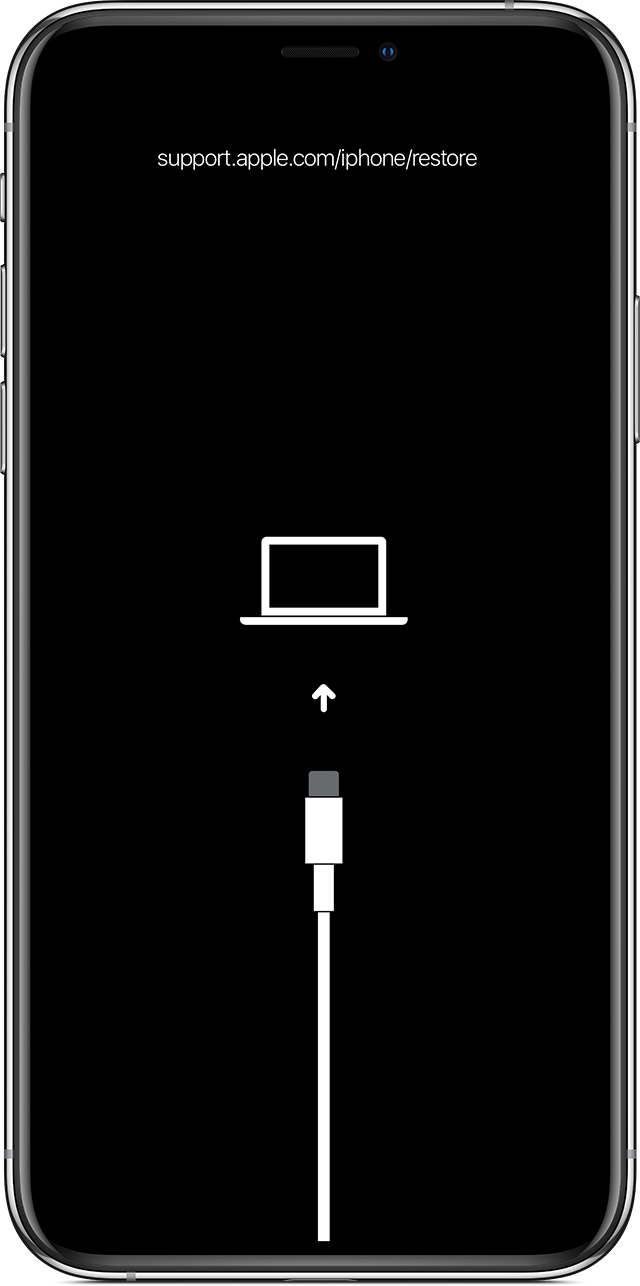
  4. When you get the option to restore or update, choose Update. Your computer will try to reinstall iOS or iPadOS without erasing your data.
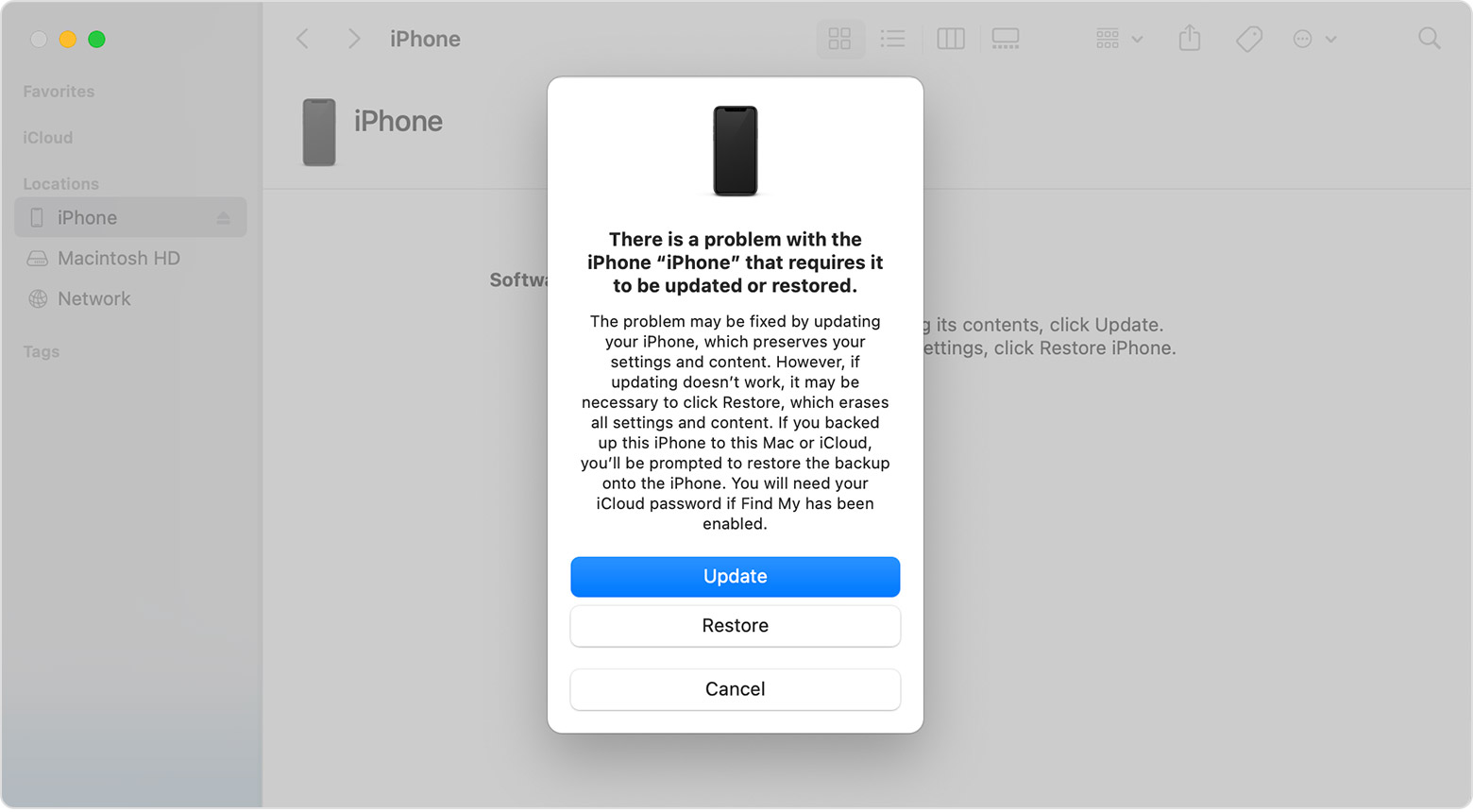


Your computer will download the software for your device. If it takes more than 15 minutes, your device will exit recovery mode and you’ll need to repeat steps 2 and 3.

If you need more help

Contact Fix Factory to set up free service diagnostics if you have any of these issues:

  • You still see a black screen after charging, force restarting, or following the steps in this article.
  • You see a black screen, but you can hear alerts, sounds, and vibrations.
  • The screen remains black, but the device chirps when you unmute it and connect it to power.
  • Your screen is on, but it doesn’t respond when you tap, slide, or try other gestures.
  • You can’t force your device to restart because a button is broken or stuck.
  • Your device is stuck on the Apple logo, displays a solid color, or isn’t recognized in iTunes.
Published Date: 

How Fix Factory is Protecting You + Your Devices’ Health, 1 Fix at a Time

How Fix Factory is Protecting You

Fix Factory is working to keep our customers and communities protected as we adapt our service delivery in response to government restrictions in place to slow the spread of COVID-19. We are committed to making sure you have the support you need during these challenging times. Here’s what we are doing to help.

More Ways Fix Factory is Committed to Your Health + Safety

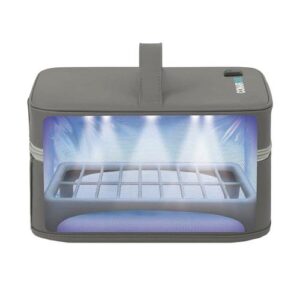
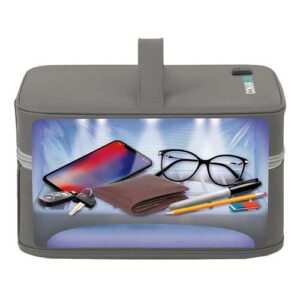
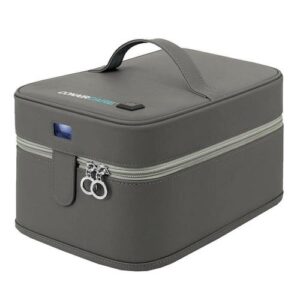
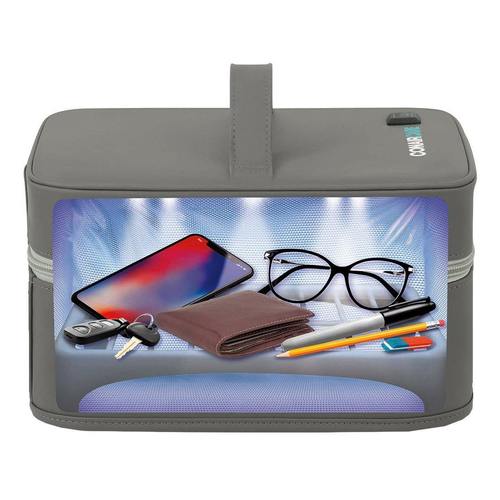
In addition to our ongoing Covid-19/General Contamination Policies and Procedures, We’ve introduced UVC Sanitization Technology, adding another layer of safety for our Customers & Technicians. The Sanitizing Soft Case contains 12 UVC LED lights that are combined with a reflective lining and removable plastic rack for a full sanitization within 3 easy minutes. Remember also, We disinfect, with 70-75% Alcohol Swabs, your device(s) pre-fix & post-fix, in addition to this extra UVC layer of safety.

UV light is one type of electromagnetic radiation that comes naturally from the sun and can also be created artificially with specialized bulbs. There are three types of UV radiation—UV-A, UV-B, and UV-C—none of which can be observed with the naked eye. Of the three, UV-C has the smallest wavelengths (180-280nm) and is the one required for UV disinfection.

It’s important to note that sanitation and disinfection aren’t synonymous. Sanitization reduces the number of germs on a surface. Disinfection, on the other hand, “eliminates many or all pathogenic microorganisms, except bacterial spores, on inanimate objects,” per the CDC.

UV-C light is just one disinfection method shown to inactivate the COVID-19 virus in multiple studies. The EPA keeps a list of COVID-19-approved disinfectants that can be used on various surfaces. But make sure to read the directions carefully, as many of these products aren’t friendly to your tech devices. Generally we use a soft cotton medical grade 70-75% Alcohol Swab. Want one of your own? Purchase them here!

Contactless Pick-Ups & Returns + On-Site Fix(in Vehicle)

If scheduled for an on-site fix, all Fix Factory Technicians wear a mask, sanitize tools and their person regularly. For our on-site services, We ask that you are wearing a mask upon the technician arriving. Our Technicians have been coached in the best ways known to avoid contamination and in working cleanly.

Book Your Phone Fix Online!

For Pick-Up/Drop-Off Services, Please ensure You place your device(s) for fix in a safe location 10-15 minutes prior to our arrival to pick-up your item(s) for fix. For Pick-up Service items, We will place them in separated compartments upon disinfecting and sanitizing for pick-up. Upon dropping off your device(s), we will provide them in a sanitized means, typically with the sanitized device(s) placed in a sealed sanitized plastic bag for transport and delivery.

Book Your Tablet or iPad Online!

We encourage you to clean your phone and phone screen frequently with approved >=70% alcohol wipes or another device approved cleaning solution. Do not use household cleaners, such as ‘Windex’ or ‘Vinegar Water’, as this may damage your glass/LCD, seals and/or frame assembly.

Personal Protective Equipment

We are using personal protective equipment such as masks and gloves, and are constantly sanitizing our work areas, pick-up vehicles and devices.

Sanitized Tools

We are increasing the frequency of our tool cleaning. We use approved and industry strength cleaning products, which are safe for your devices. We will provide you with a 70-75% Alcohol swab for device sanitization prior to us receiving it from you, whether for on-site or pickup/drop-off services.

Enhanced Sanitary Procedures

We have enhanced our cleaning procedures, increased frequency of cleaning and sanitization, and made our services contactless. Fix Factory is more than ever committed to safe processes and procedures, and will evolve these as details are released from the Government of Canada. For more information regarding Covid-19, please go to the Government of Canada’s website: Coronavirus Disease (COVID-19) – Information for Canadians‎ AND/OR Coronavirus disease 2019 – World Health Organization